
The Problem: One of the CM site users went to the content tree and from the ribbon published the whole site. Now two things might happen
- the CM site is executing a full site publish and thus can be slow responsive for a specific period of time.
- a lot of unwanted items ( if proper work flow was not implemented ) will also get published
So what should be done is this scenario? The Solution: Its a permission related thing. You can either deny or allow depending on your needs. The Sitecore role which handles publish related activities is “Sitecore\Sitecore Client Publishing” you have to deny/grant “READ” permission to this user to for the paths – “/sitecore/content/Applications/Content Editor/Menues/Publish/Publish Site” and “/sitecore/content/Documents and settings/All users/Start menu/Left/Publish Site”. Here are the steps: Step 1: Switch to “core” database from Sitecore Desktop Step 2: Open “Access Viewer” and go to : “/sitecore/content/Applications/Content Editor/Menues/Publish/Publish Site” . Click on “Assign” button in the ribbon to open “Assign Security Rights” properties window. Select the role “Sitecore\Sitecore Client Publishing” and click on the “X”(deny) for “READ” permission. 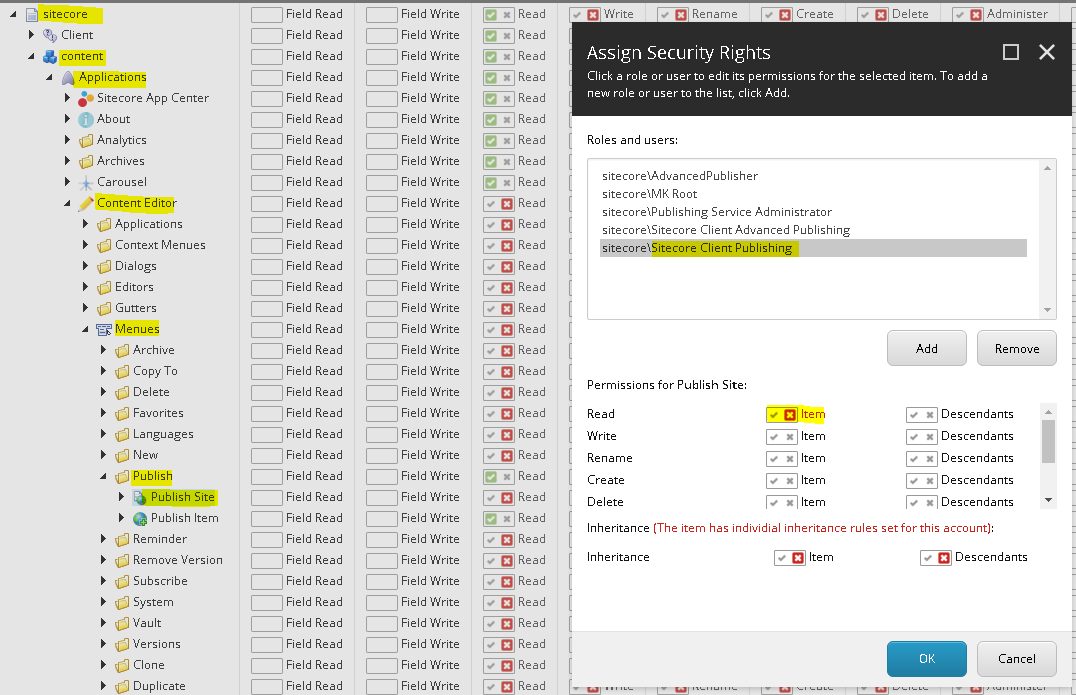 Step 3: Similarly go to : “/sitecore/content/Documents and settings/All users/Start menu/Left/Publish Site” . Click on “Assign” button in the ribbon to open “Assign Security Rights” properties window. Select the role “Sitecore\Sitecore Client Publishing” and click on the “X”(deny) for “READ” permission.
 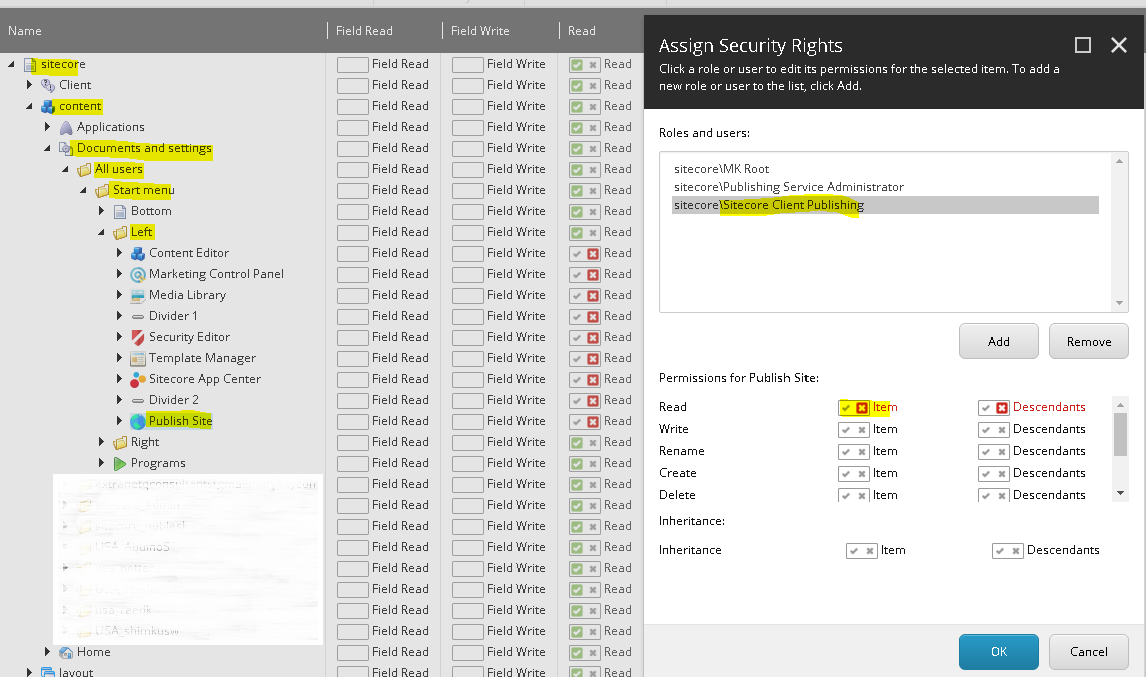 Step 4: You are done. Go ahead and see that in the ribbon as well as the start menu the “Publish Site” option is not available.