The original post is located here – https://github.com/naeemmohd/serverless/blob/master/serverless001-processdata-using-s3lambdadynamodb/README.md
This article shows how to use there three AWS services – S3, Lambda and DynamaDB to process structured files.
The following steps would be needed to accomplish the objective:
- First of all we will have salary data files for per month for a organisation containing Employee ID, Employee Name, Salary as the fields
- Next, we will upload this file to S3.
- Next, this will fire Lambda trigger event which will process the uploaded file.
- Next, once the data is proccesed it will be stored in the database.
Lets tabulate the steps as below:
| Steps | Actions |
|---|---|
| Prerequisite | Generate the data files for 12 months for 100 employees |
| S3 | Create a S3 bucket to upload files |
| Lambda | Create a Lambda function with a trigger which gets invokes as a file is uplaoded to S3 |
| DynamoDB | Once the file is getting processed keep writing and updating the data in a table |
Prerequisite – Generate the data files for 12 months for 100 employees
- Since we don’t have data files with us, let’s try to generate data files using a python sample code.
- We would need some random names and random salary values to generate such a file.
- Python ha these two libraries – names and random to genartes names and numbers.
- We will have to install and import these packages first:
# **install pip and dependencies**
sudo apt-get install python-pip python-dev build-essential
# **install names package**
pip install names # **install random package**
pip install random
- Here is the code for the file salary data generator file(DataFileGenerator.py):
# **import the names package**
import names
# **import the randoms package**
import random # **As we need to generate 12 months data lets create the range - range(1,13)**
monthNumbers = range(1,13)
# **Iterate through the month numbers**
for monthNumber in monthNumbers: # **Open/create salarydata files to write the salary data** with open('logs/salarydata-' + str(monthNumber) + '.csv', 'w+') as outfile: # **Number of rows in each file - 100** numRows = range(1,101) # **Write the first line as header outfile.write('EmpID,EmpName,EmpSalary\n') strRow = '' # **Iterate thrrough the row numbers to generate the rows for numRow in numRows: # **EmpID as concatenated string as str(monthNumber) + str(numRow)** # **EmpName as a random name using the names package - names.get_full_name(gender='male')** # **EmpSalary as random salary value between 5555 to 7777 - random.randint(5555, 7777)** # for even rows the name will be male else female if numRow % 2 == 0: strRow = str(monthNumber) + str(numRow) + ',' + names.get_full_name(gender='male') + ',' + str(random.randint(5555, 7777)) else: strRow = str(monthNumber) + str(numRow) + ',' + names.get_full_name(gender='female') + ',' + str(random.randint(5555, 7777)) outfile.write(strRow + '\n') outfile.close()
- Now save and execute the above python file(DataFileGnerator.py):
python DataFileGnerator.py
S3 Create a S3 bucket to upload
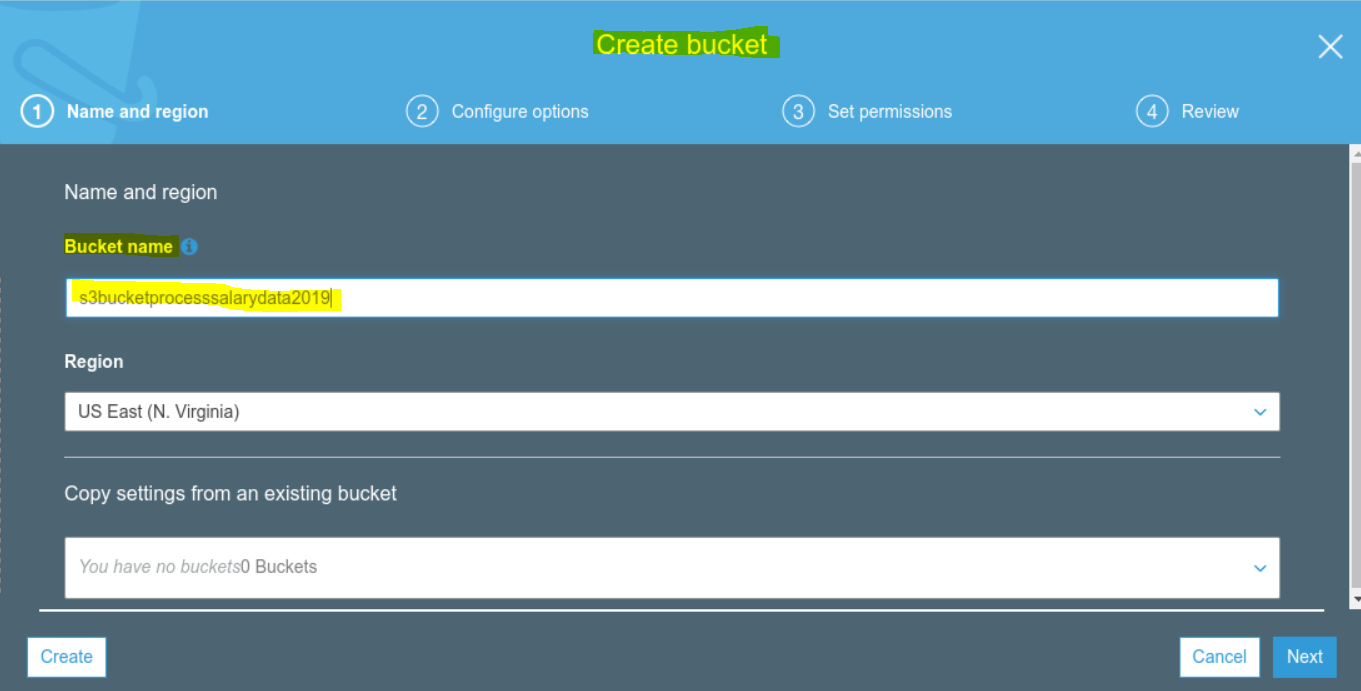
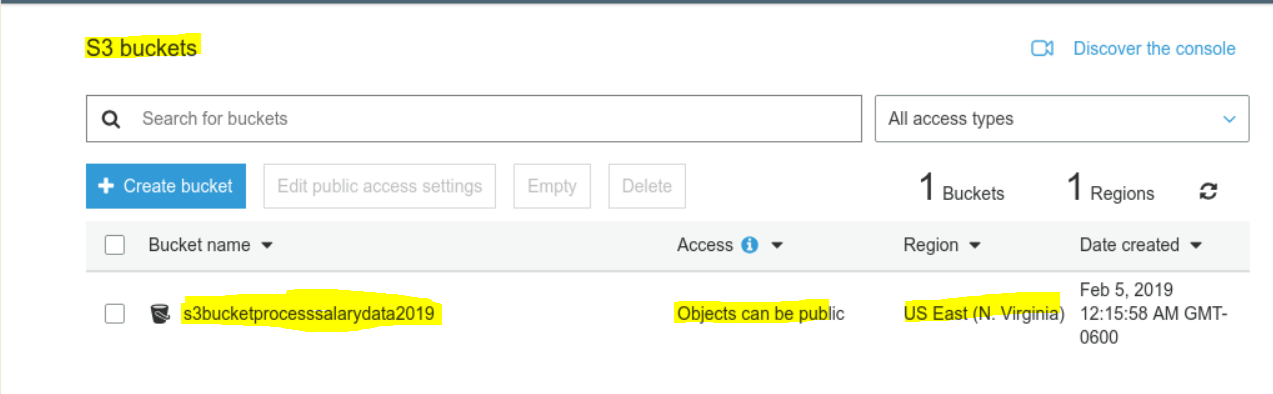
- Create a bucket name – any universally unique name is okay.
- Lets put the name as – S3BucketProcessSalaryData2019
- Please see the snapshot below
Lambda | Create a Lambda function with a trigger which gets invokes as a file is uplaoded to S3
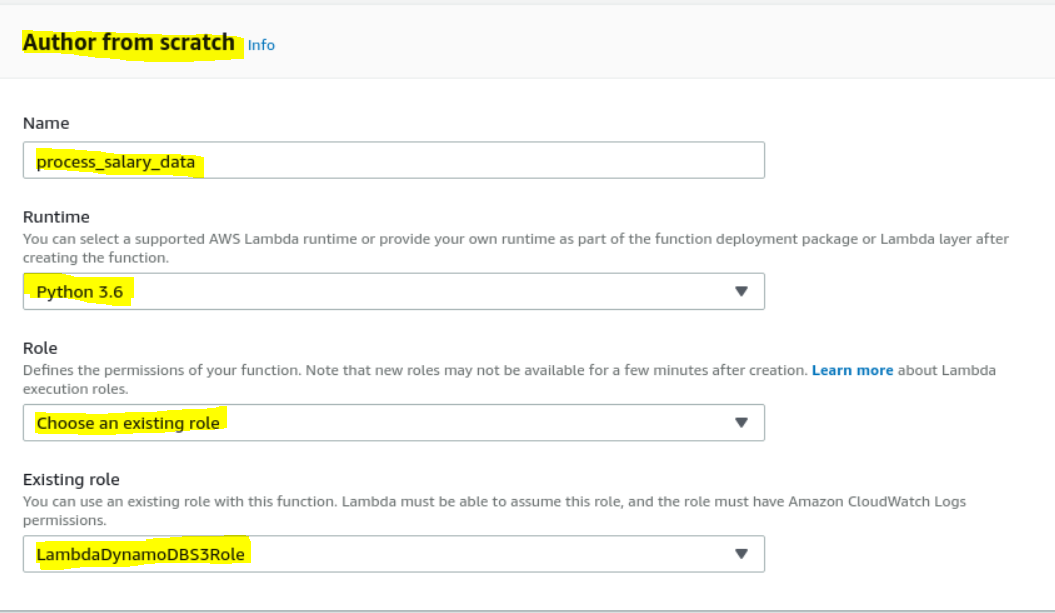
- Create a Lambda function named – process_slary_data.
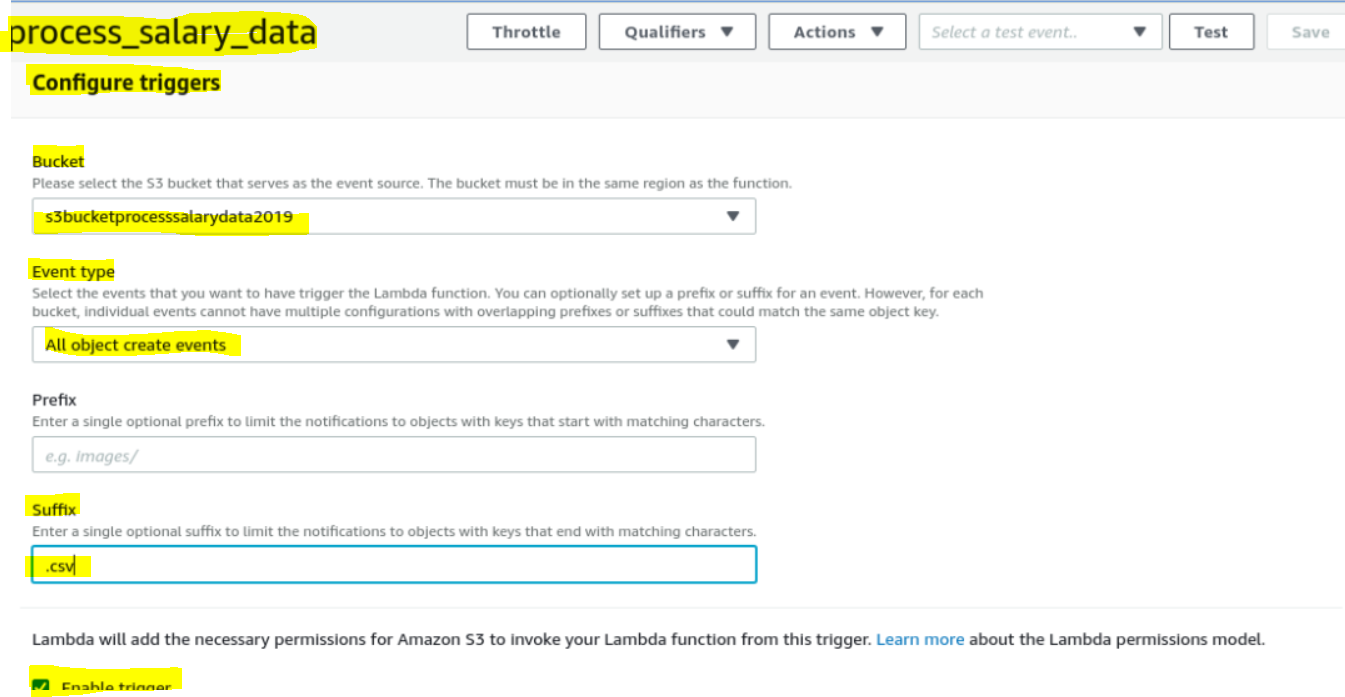
- Add a trigger to invoke on any item add to the above bucket
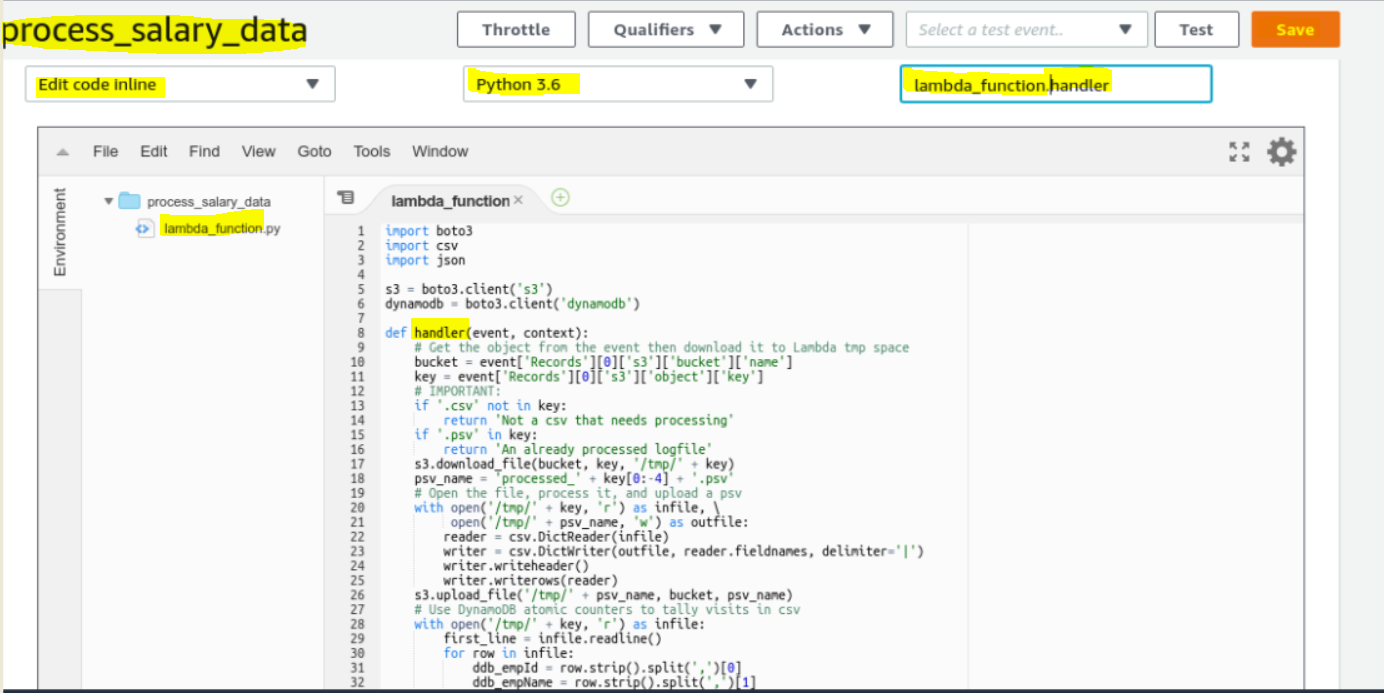
- Add the function code as below:
# **import boto3, csv and json packages**
import boto3
import csv import json # **generate variables for S3 and DynamoDB clients**
s3 = boto3.client('s3')
dynamodb = boto3.client('dynamodb') # **The main lambda handler function**
def handler(event, context): # **get the bucket name and salary data file name as key** bucket = event['Records'][0]['s3']['bucket']['name'] key = event['Records'][0]['s3']['object']['key'] # **Dont process if the files does not have a .csv extn** if '.csv' not in key: return 'Please upload .csv files only.' if '.psv' in key: return 'This .psv file is already proccessed' # **download the .csv file to /tmp folder** s3.download_file(bucket, key, '/tmp/' + key) psvName = 'processed_' + key[0:-4] + '.psv' # Open the .csv file to process it, and upload the processed .psv file with open('/tmp/' + key, 'r') as infile, \ open('/tmp/' + psvName, 'w') as outfile: reader = csv.DictReader(infile) writer = csv.DictWriter(outfile, reader.fieldnames, delimiter='|') writer.writeheader() writer.writerows(reader) s3.upload_file('/tmp/' + psvName, bucket, psvName) # Use the DynamoDB atomic counters to add/update data in the DynamoDB with open('/tmp/' + key, 'r') as infile: first_line = infile.readline() for row in infile: ddb_empId = row.strip().split(',')[0] ddb_empName = row.strip().split(',')[1] ddb_empSalary = row.strip().split(',')[2] response = dynamodb.update_item( TableName='EmployeeSalary', Key={ 'EmpID': {'N': ddb_empId}, 'EmpName': {'S': ddb_empName}, }, UpdateExpression='ADD EmpSalary :empSalary', ExpressionAttributeValues={ ':empSalary': {'N': ddb_empSalary} }, ReturnValues="UPDATED_NEW" ) print(response)
DynamoDB | Once the file is getting processed keep writing and updating the data in a table
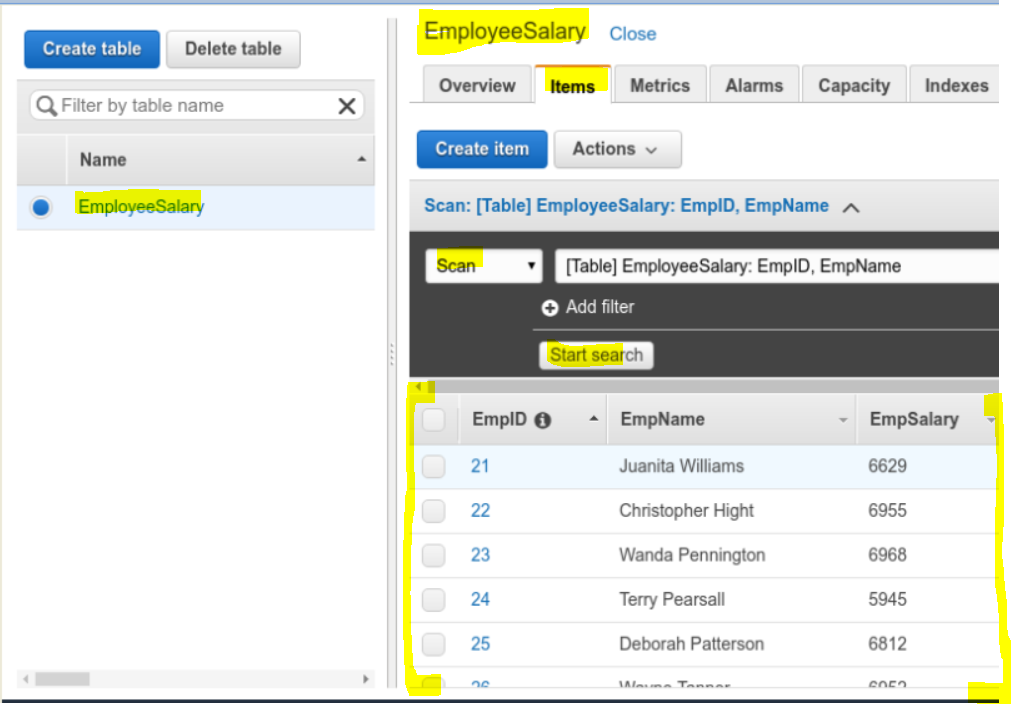
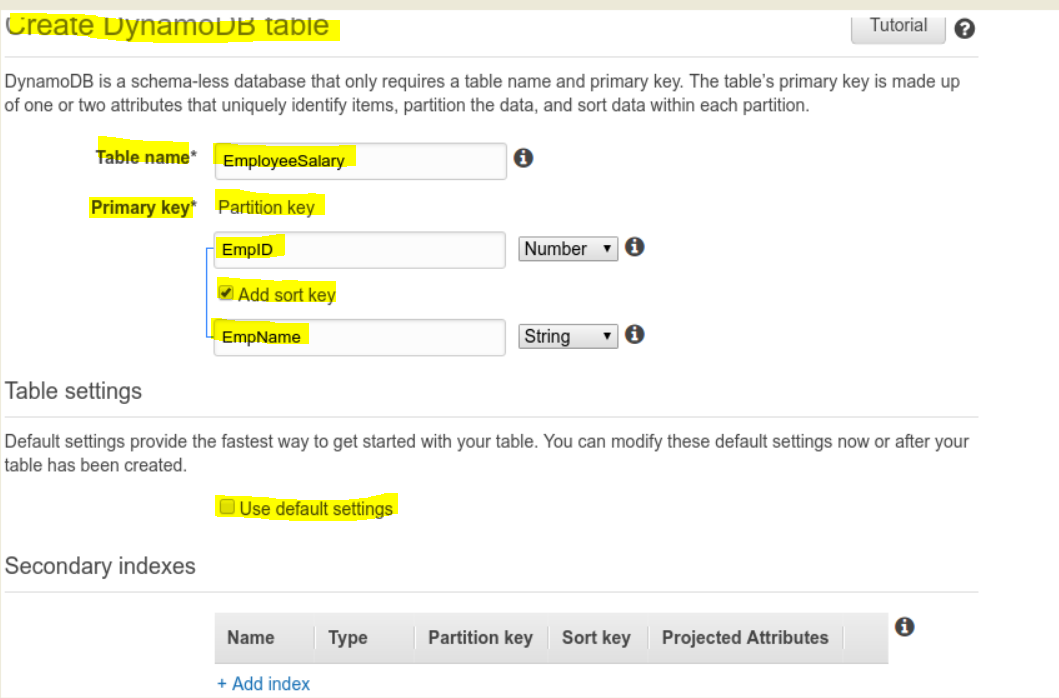
- Create a DynamoDB table ‘EmployeeSalary’ with Primary Key as ‘EmpID’ and Sort Key as ‘EmpName’.
- Please see the snapshot below.
Once the above steps are ready
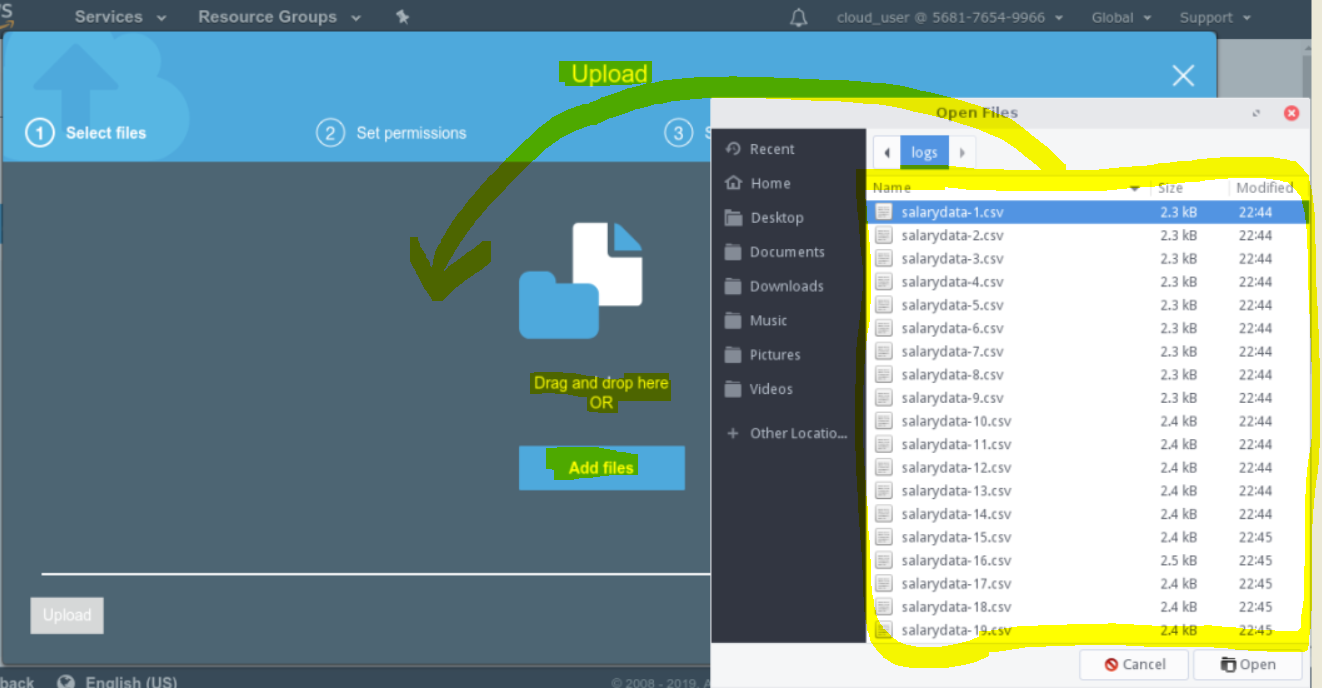
- Drag and drop the generated salary data files in the S3 bucket.
- Check if another .psv files is also generated
- Check the DynamoDB tablea to see if your salary data is sucessfully written.
- Please see the snapshot below.