- Requirement:
- Setting up a NodeJs Docker Application
- Strategy:
- Create the files needed to run the NodeJS application
- Create a Dockerfile
- Build, run , push and pull the image
- How to use ONBUILD to delay a dependency till build time
- Solution:
- Login to your Host machine(in my case a CentOS 7 machine)
- Make a directory “mynodejs” and go to the directory – mkdir mynodejs && cd mynodejs
- Create a file package.json with the following component and save
-
{
“name”: “my_docker_nodejs_app”,
“version”: “1.0.0”,
“description”: “My Docker NodeJs App”,
“author”: “MOhd Naeem <[email protected]>”,
“main”: “server.js”,“scripts”: {
“start”: “node server.js”
},
“dependencies”: {
“express”: “^4.16.1”
}
}
-
- Create a file server.js with the following component and save
-
‘use strict’;
const express = require(‘express’);
// Constants
const PORT = 8080;
const HOST = ‘0.0.0.0’;
// App
const app = express();
app.get(‘/’, (req, res) => {
res.send(‘Hello world\n’);
});
app.listen(PORT, HOST);
console.log(`Running on http://${HOST}:${PORT}`);
-
- Create a file Dockerfile with the following component and save
-
# starting from base image node:alpine
FROM node:7-alpine
# Creating an app directory on the container
RUN mkdir -p /src/app
# setup working directory
WORKDIR /src/app
# Installing any app dependencies
# A wildcard being used to ensure both package.json and package-lock.json are copied
# if nodejs V>5+
COPY package*.json /src/app
# For PROD env only use flag –only=production
# e.g RUN npm install –only=production
# Running npm install in Non-Prod env.
RUN npm install
# Bundle app source
COPY . /src/app # Expose port 3000
EXPOSE 3000 # Run command to start npm
CMD [ “npm”, “start” ]
-
- Create a file .dockerignore with the following component and save
-
node_modules
npm-debug.log
-
- Now build the app-
- docker build -t mynodejsapp-image:v1 .
- Now run run the container to run the website
- docker run -d -p 49160:8080 mynodejsapp-image:v1
- Check the content
- curl -i localhost:49160
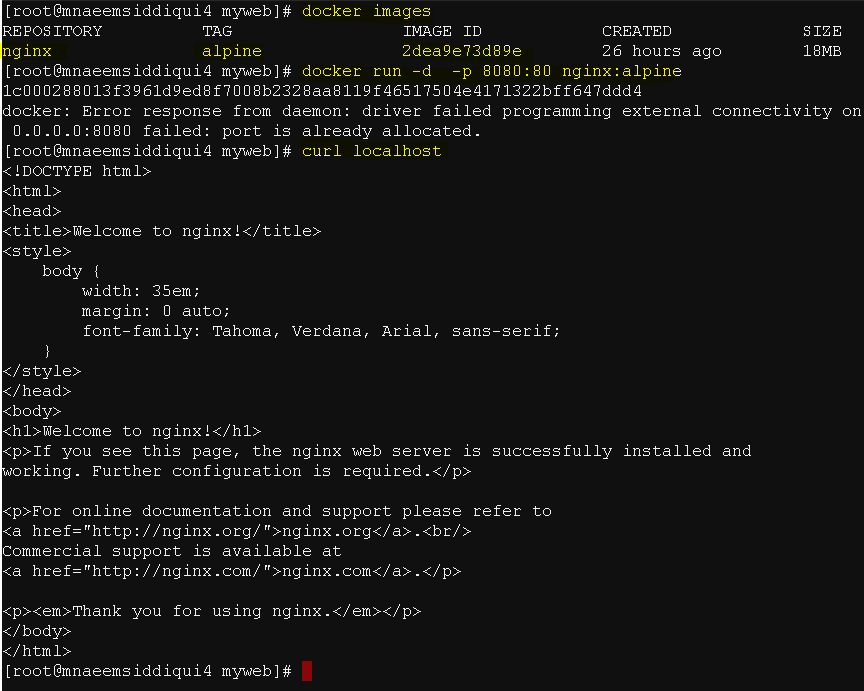
- Now check for the image name for your app and tag it for pushing it to Docker Hub
- docker images # to check for image name
- docker tag image username/repository:tag # for tagging
- docker tag 4ffd91cdc6a0 mnaeemsiddiqui/naeemsrepo:mynodejsapp-image-v1
- docker login # to login to the Docker hub
- Now push the image to Docker Hub
- docker push mnaeemsiddiqui/naeemsrepo:mynodejsapp-image-v1
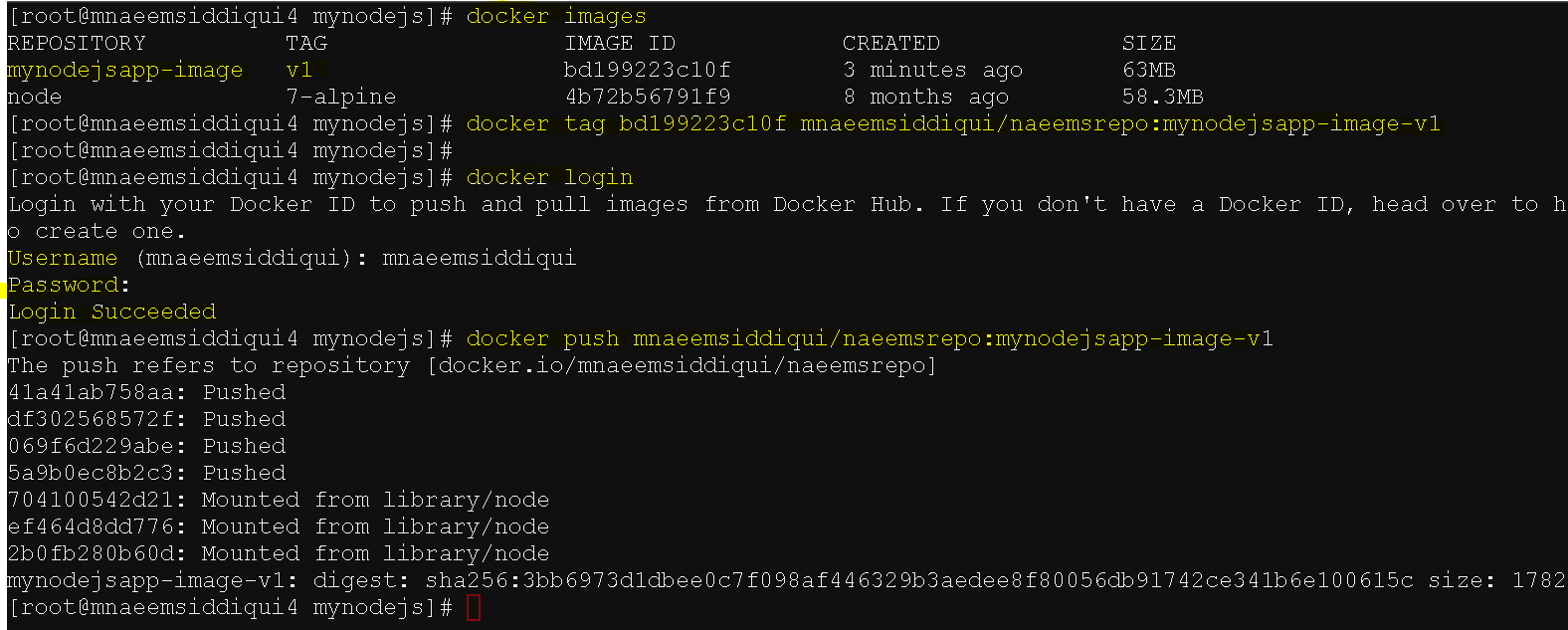
- Now pull the image to Docker Hub
- docker pull mnaeemsiddiqui/naeemsrepo:mynodejsapp-image-v1
- Now run it on another server
- docker run -d -p 49160:8080 mnaeemsiddiqui/naeemsrepo:mynodejsapp-image-v1
- curl -i localhost:49160
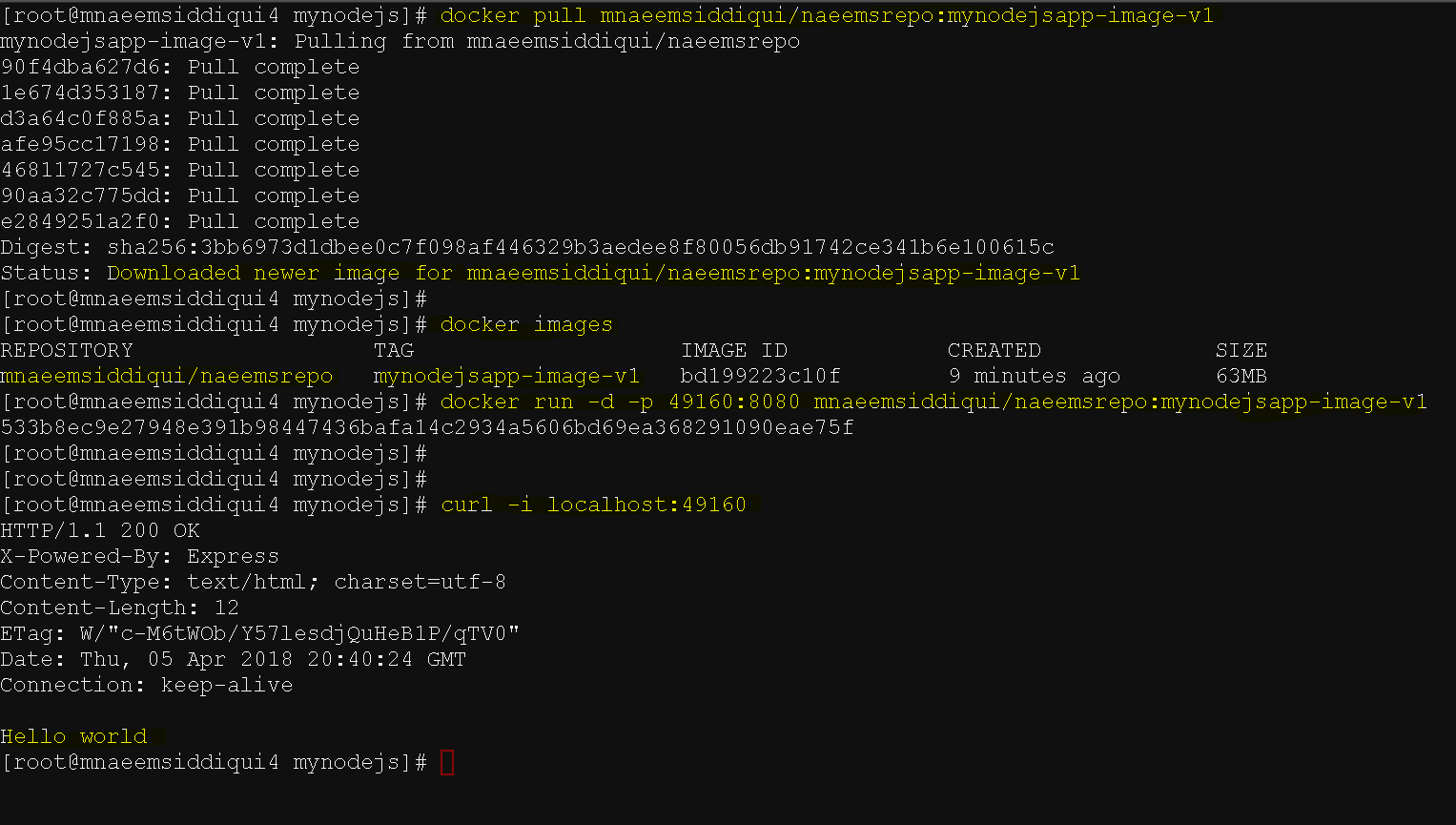
- Using OnBuild to delay execution of dependencies
- Lets update the Dockerfile with content below
- The big difference is that we are delaying the execution of commands for copying the package.json, npm install and copying of source application files till building by using keyword build
-
- #starting from base image node:alpine
FROM node:7-alpine
# Creating an app directory on the container
RUN mkdir -p /src/app
# setup working directory
WORKDIR /src/app
# Installing any app dependencies
# A wildcard being used to ensure both package.json and package-lock.json are copied
# if nodejs V>5+
ONBUILD COPY package*.json /src/app
# For PROD env only use flag –only=production
# e.g RUN npm install –only=production
# Running npm install in Non-Prod env.
ONBUILD RUN npm install
# Bundle app source
ONBUILD COPY . /src/app # Expose port 3000
EXPOSE 3000 # Run command to start npm
CMD [ “npm”, “start” ]
- #starting from base image node:alpine
- Now build and run the application once again.
Dockers 101 – Series 7 of N – Setting Up a Node.js Docker Application
