- Requirement:
- To setup a WordPress website using docker-compose.yml and docker-compose
- Strategy:
- Docker uses a docker-compose.yml to define the orchestration.
- docker-compose is an orchestration tool which uses the docker-compose.yml to setup multiple containers.
- For above requirement we need the following:
- WordPress is a multi tier application with a front-end, business layer and a database back-end.
- One of the features of docker is single responsibility principle. So these multiple layers will be represented by multiple images and containers
- Install docker-compose and setup the file docker-compose.yml
- Solution:
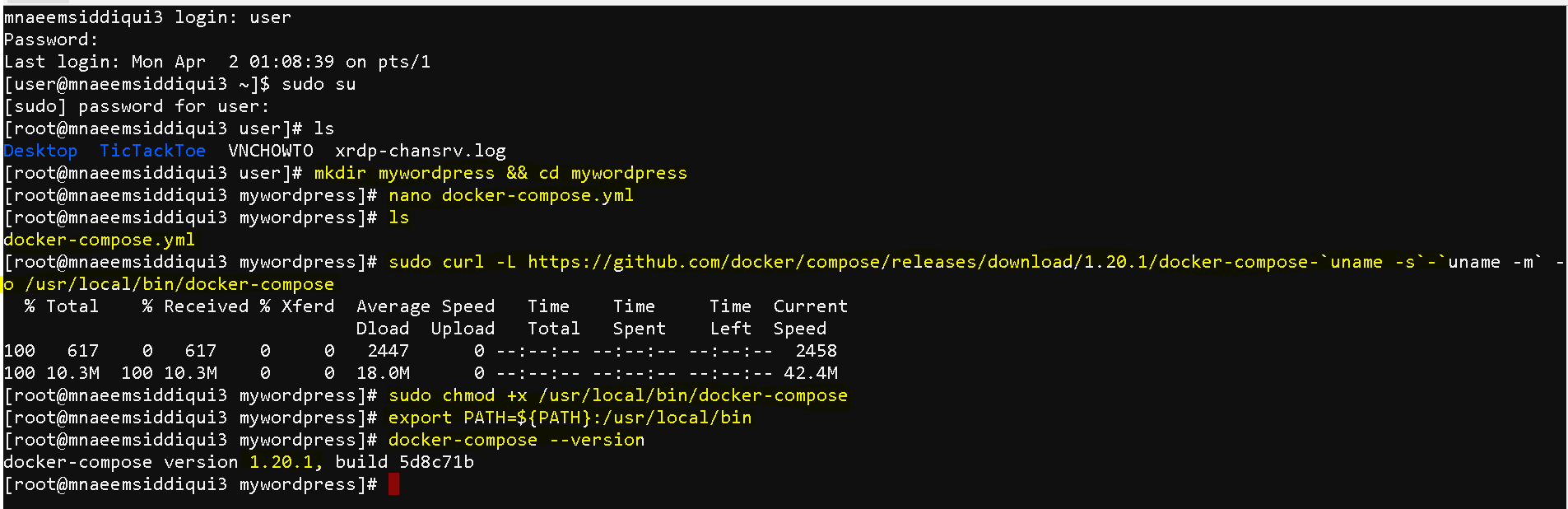
- Login to your Host machine(in my case a CentOS 7 machine)
- Make a directory “TicTackToe” and go to the directory – mkdir mywordpress && cd mywordpress
- Now setup and define images and configuration in the docker-compose.yml- nano docker-compose.yml
- Copy following content into the file and save:
- Explanation of the code:
- Download the docker-compose.yml from here – https://testbucket786786.s3.amazonaws.com/docker/docker-compose.yml
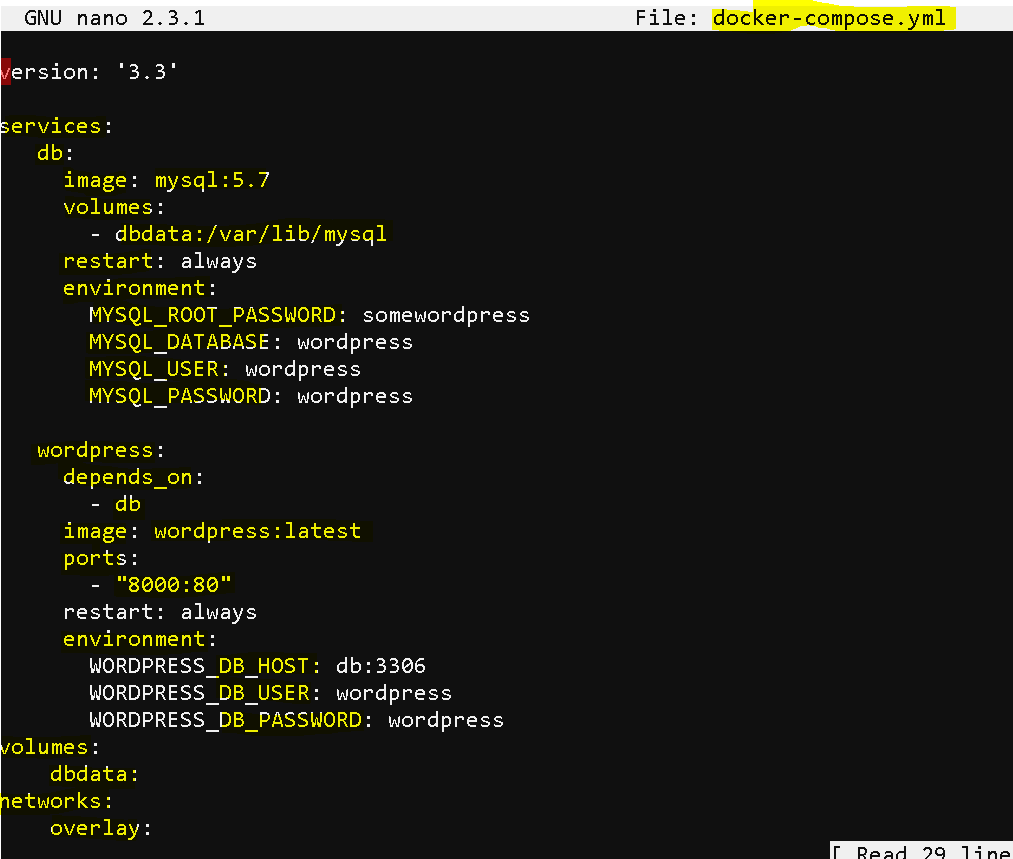
- docker-compose use some terms to define the configuration
- services: it user service keyword to define services
- the file defines two services
- db for database image settings
- image: mysql:5.7
- volume for database volumes : /var/lib/mysql
- restart: always
- and then environment settings like database, username, password and root password.
- wordpress for wordpress settings
- depends on db means that wordpress service is dependent db service to be ready first
- image: wordpress:latest
- ports: “8000:80” means 8000 is host port “port forwarding” to port 80 of container
- and then environment settings like host, user, password
- db for database image settings
- the file defines two services
- volumes: it user columes keyword to define volumes to be used and attached in the configuration
- networks: it user networks keyword to define network settings
- Install docker-compose tool
- execute these commands:
- sudo curl -L https://github.com/docker/compose/releases/download/1.20.1/docker-compose-`uname -s`-`uname -m` -o /usr/local/bin/docker-composesudo chmod +x /usr/local/bin/docker-composeexport PATH=${PATH}:/usr/local/bin
- check if docker-compose is installed
- docker-compose –version
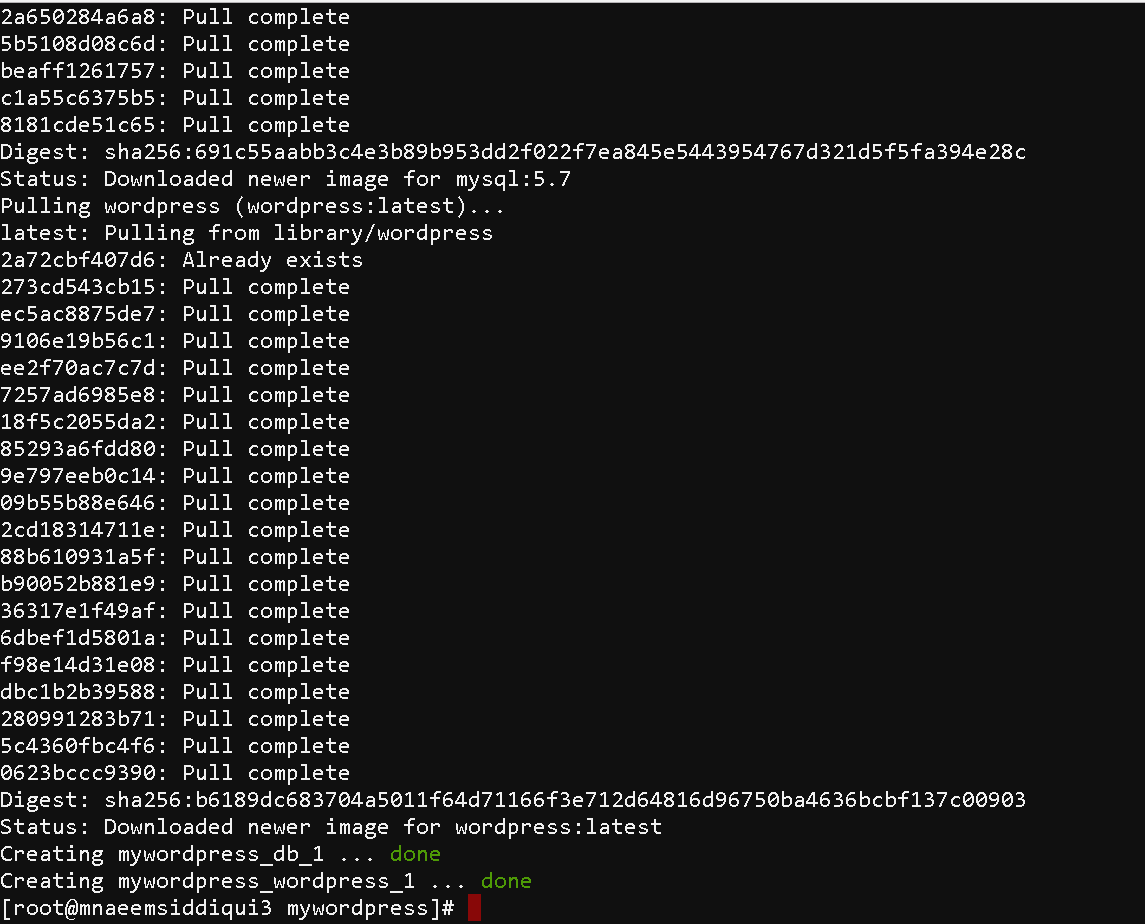
- Build the project – docker-compose up -d
- Below is the output of the command
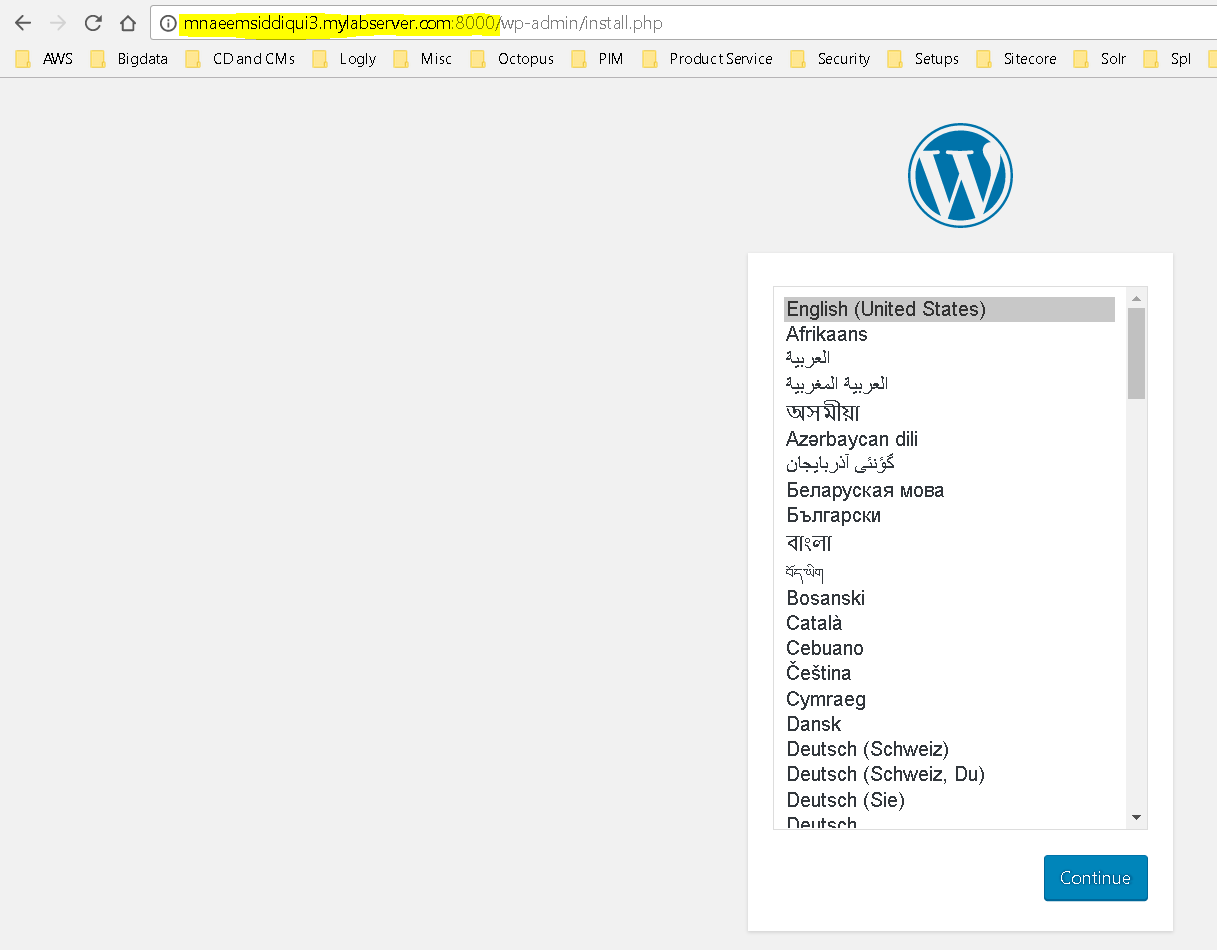
- Lets access the website:
- Yay!!!, WordPress is up.
- Since my DNS name is liek this tahts why I am running with DNS name : http://mnaeemsiddiqui3.mylabserver.com:8000
- You can either use your DNS name like : http://yourDNSwebsite:8000 or http://localhost:8000 if you are running locally.
Dockers 101 – Series 3 of N – Using Docker-Compose.yml and Docker-Compose to Setup a WordPress Site
