
Apache Nifi:
- It is a data streaming and transformation tool
- It has a nice Web based UI where we can configure the workflow.
- To understand the power of Nifi lets play with it directly.
Lets play with Nifi:
- Lets stream live twitter feed from the twitter hose.
- Prerequisites –
- A twitter developer account – if you don’t have follow these steps:
- Go to – https://apps.twitter.com
- Now login using yr existing Twitter account ( if you even don’t have Twitter account then you have to create one)
- After logging in – click on “Create New App”
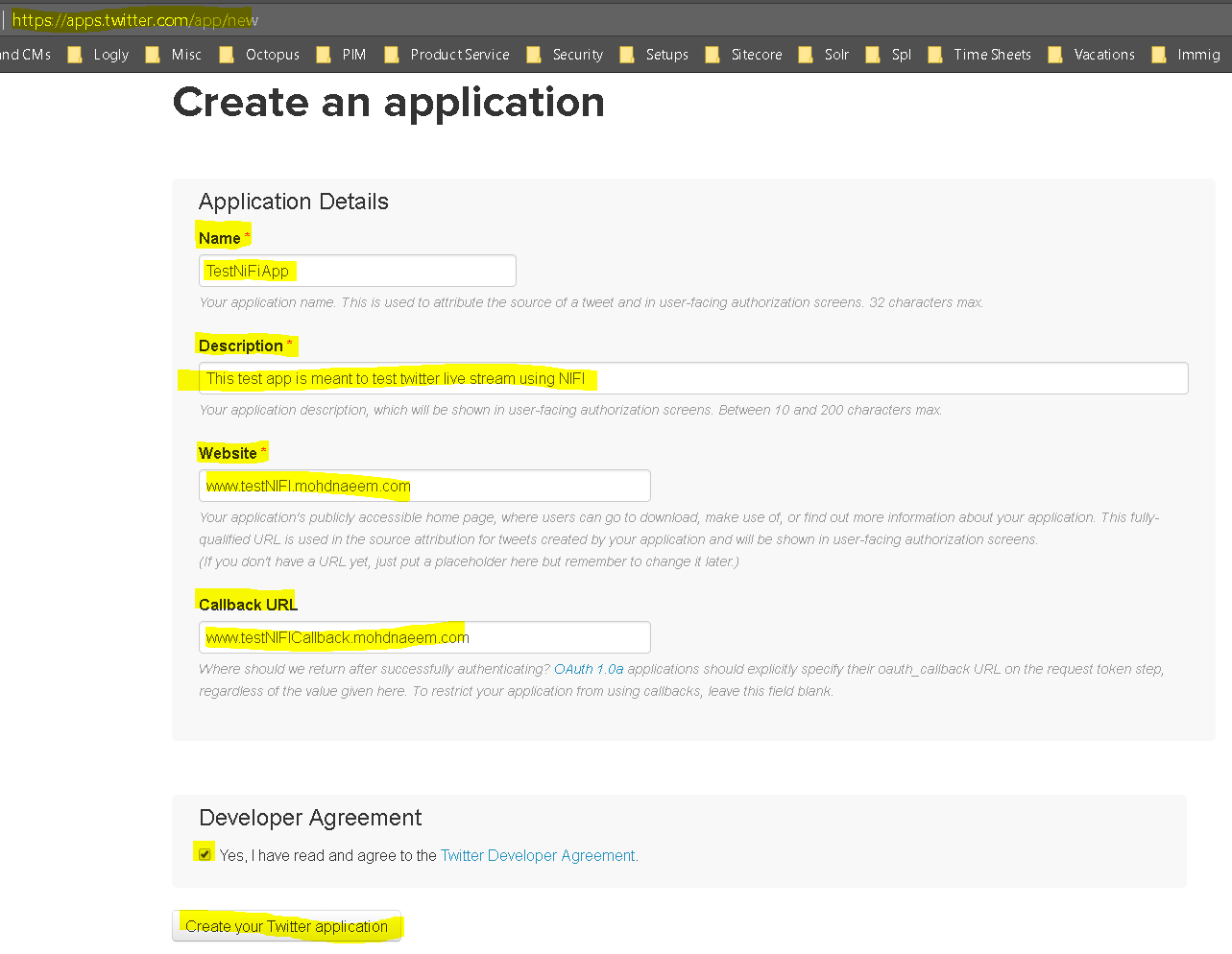
- Once the app is created, go to “Keys and Access Tokens” tab and copy the “Consumer Key (API Key)” and “Consumer Secret (API Secret)”.
- You will need this for authentication in the NIFI UI in the twitter hose.
- A twitter developer account – if you don’t have follow these steps:
- Install and Configure Nifi:
- First connect to the Sandbox console using ‘maria_dev’ credentials and elevate your permissions to root.
- create a folder for NIfi – mkdir opt/nifitest
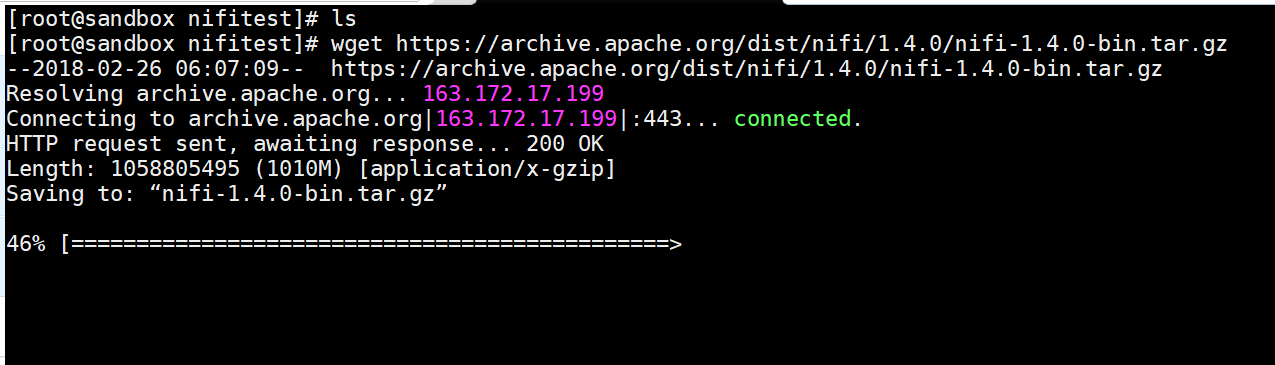
- Download the latest Nifi tar ball from – wget https://archive.apache.org/dist/nifi/1.4.0/nifi-1.4.0-bin.tar.gz
- Extract the file – tar xvfz nifi-1.4.0-bin.tar.gz
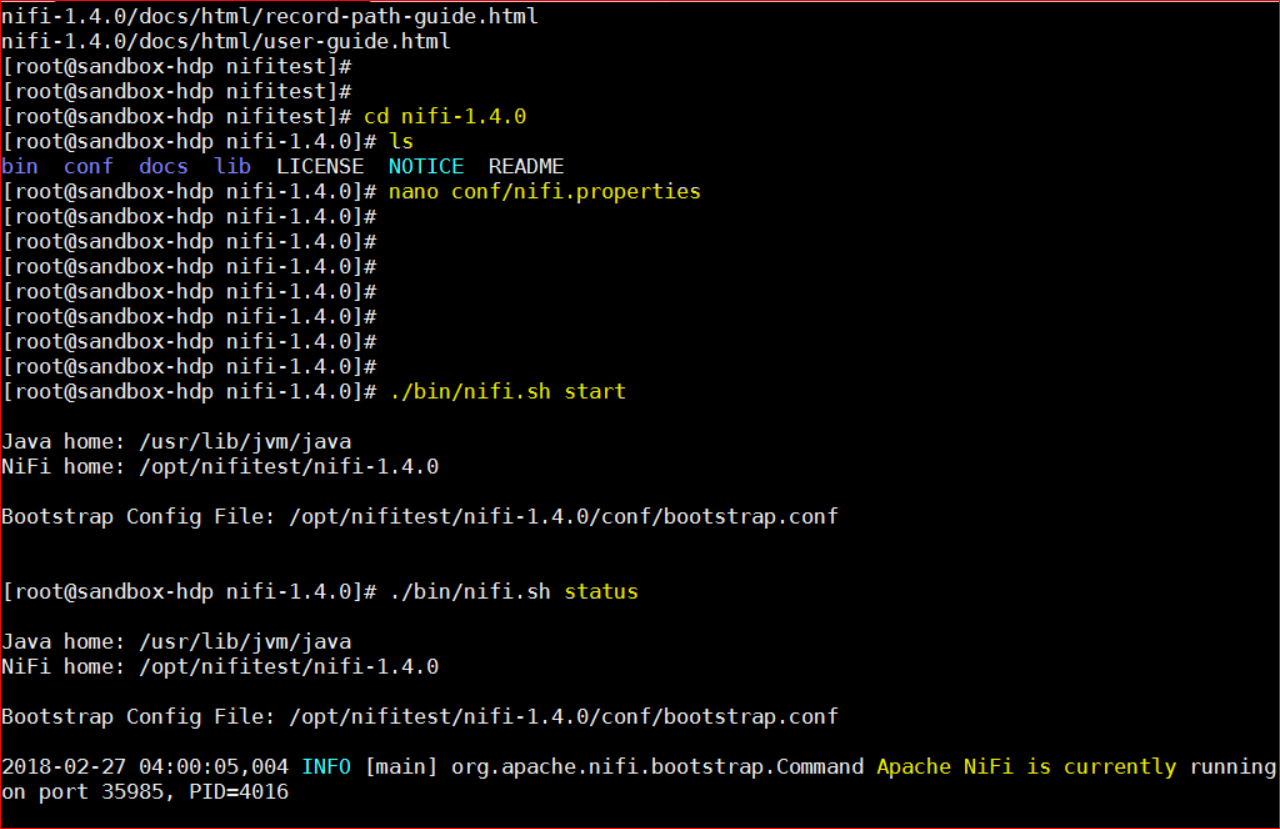
- change the folder to – cd nifi-1.4.0
- Update this file – nano conf/nifi.properties
- Update the following:
- nifi.web.http.port=8090
- Update the following:
- Now start Nifi – ./bin/nifi.sh start
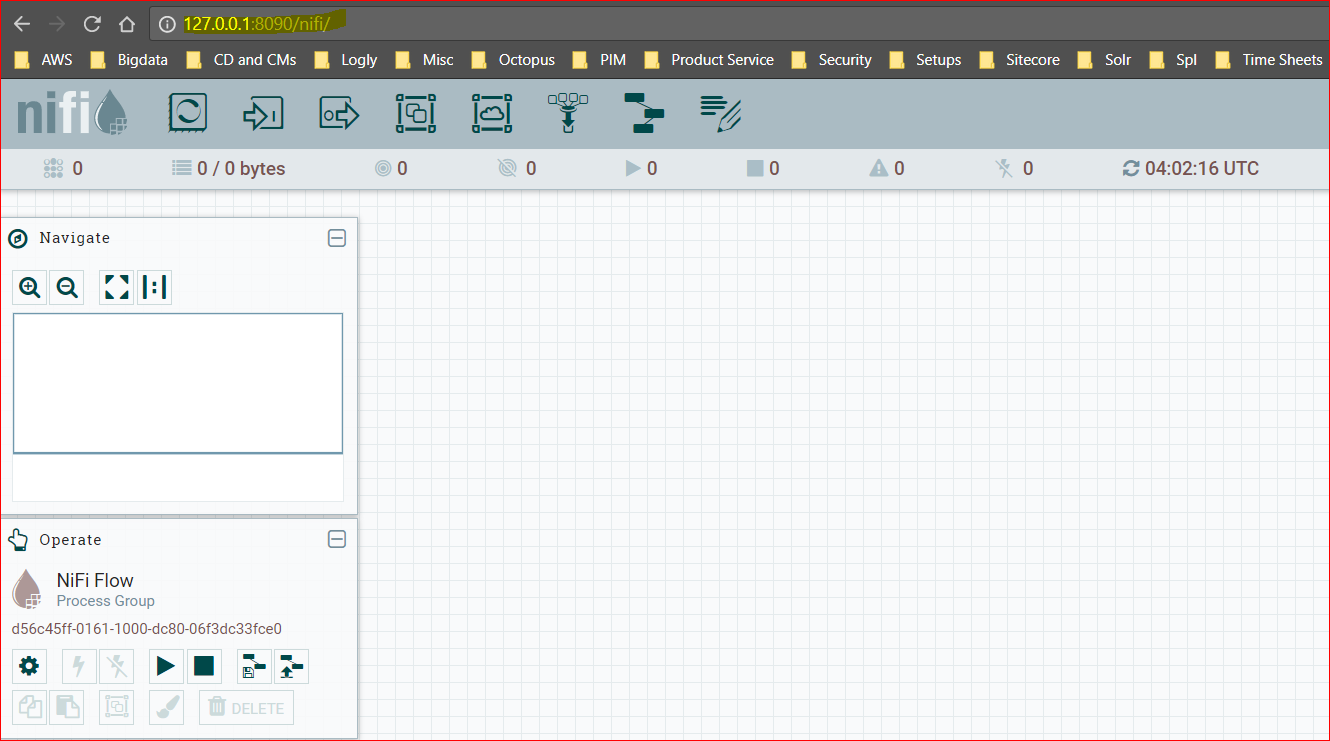
- Now login to the NiFi UI – http://127.0.0.1:8090/nifi or http://hostname:8090/nifi or http://IPAddress:8090/nifi
- There are 100s of templates available to setup and configure a workflow in Nifi. Here is the link – https://cwiki.apache.org/confluence/display/NIFI/Example+Dataflow+Templates
- Lets download the one related to Twitter Hose – https://cwiki.apache.org/confluence/download/attachments/57904847/Pull_from_Twitter_Garden_Hose.xml?version=1&modificationDate=1433234009000&api=v2
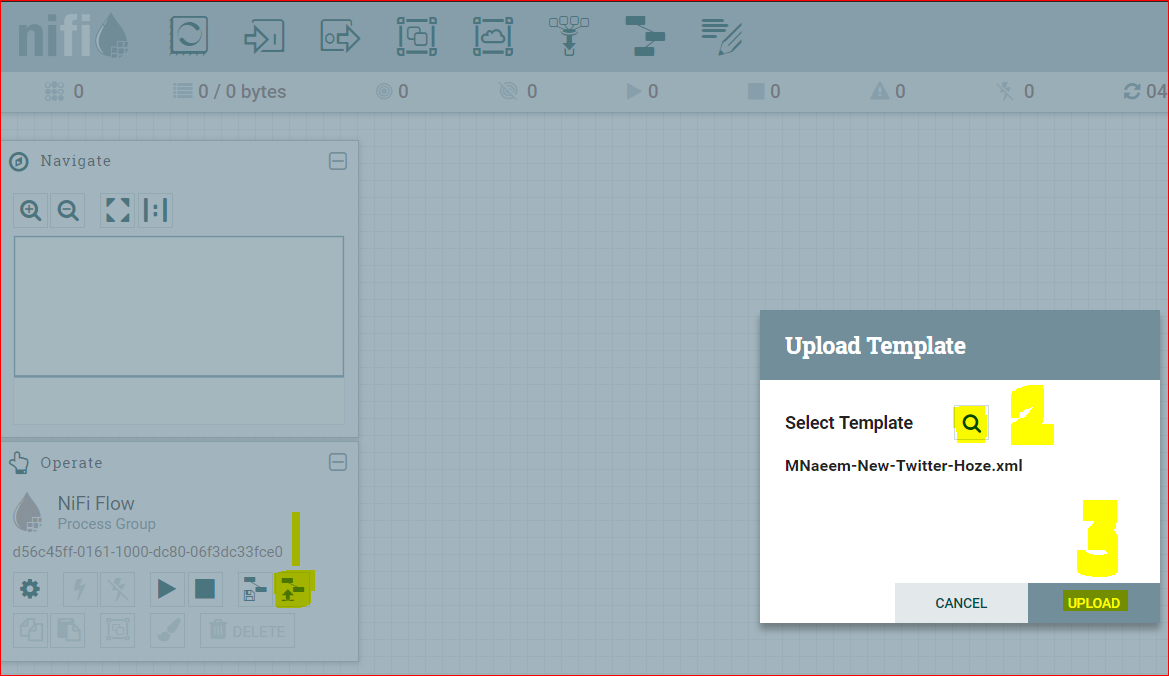
- Import the downloaded template into Nifi –
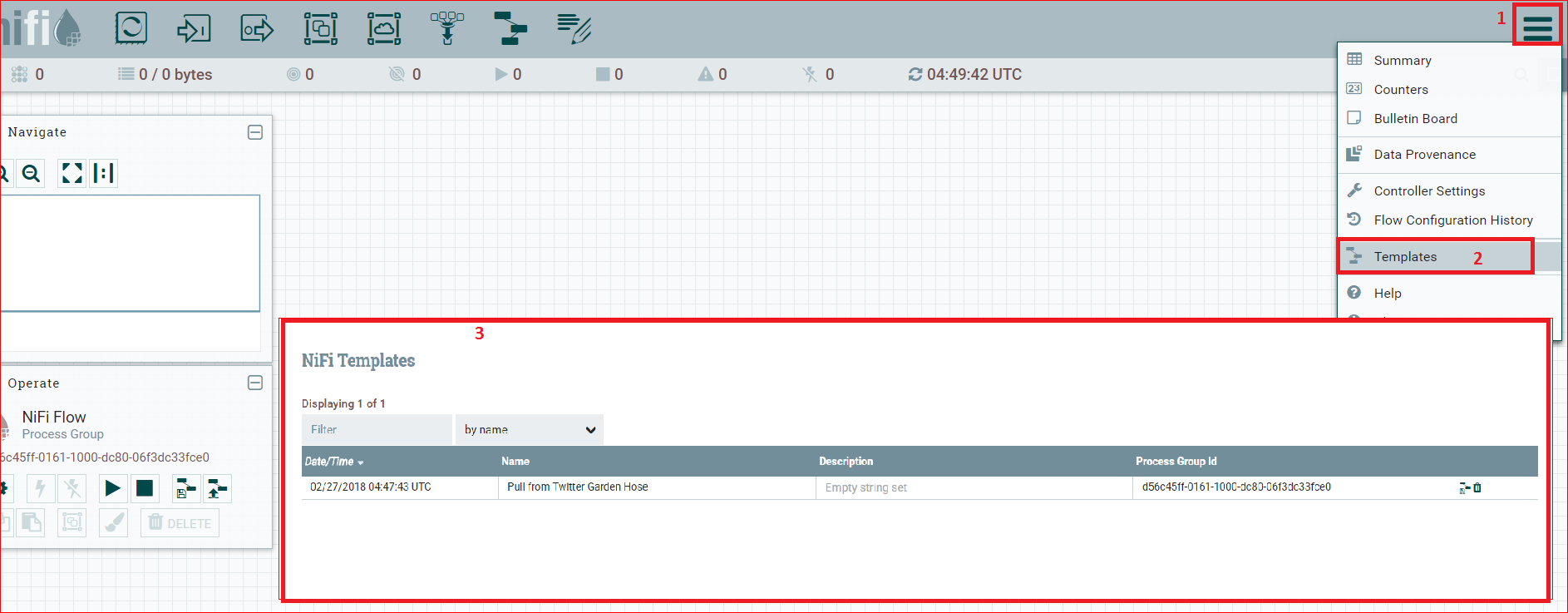
- Verify If Template Upload/Install was sucessful
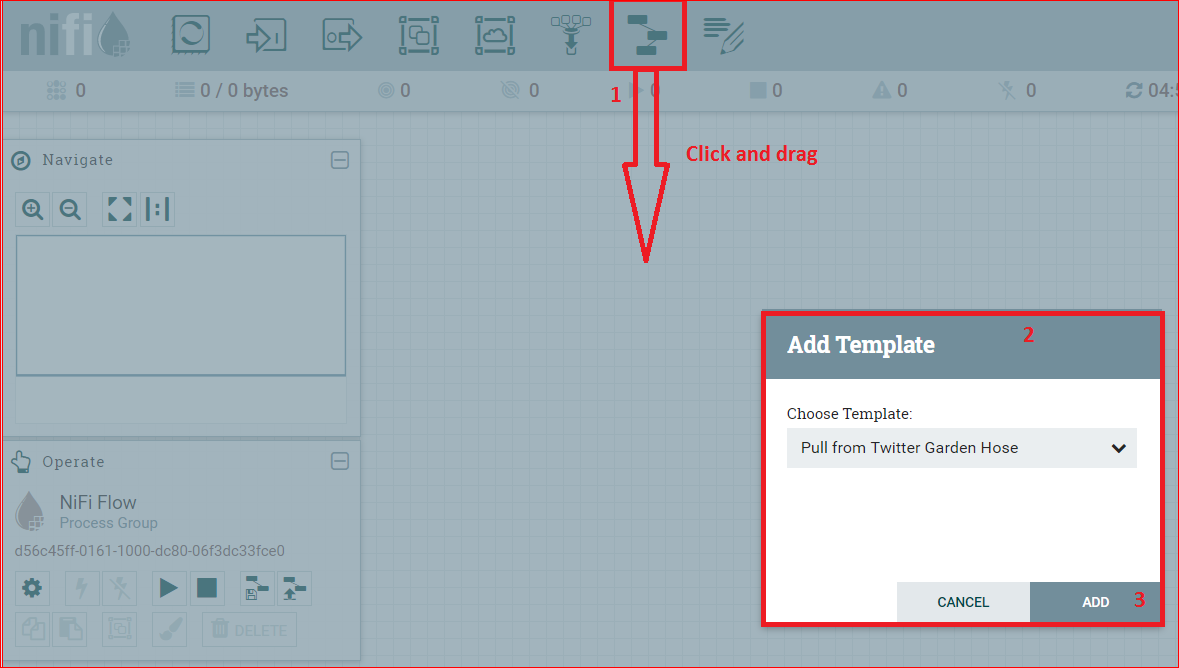
- Now click and drag the template icon button to the work area as shown in the snapshot below:
- You will see the template like below:
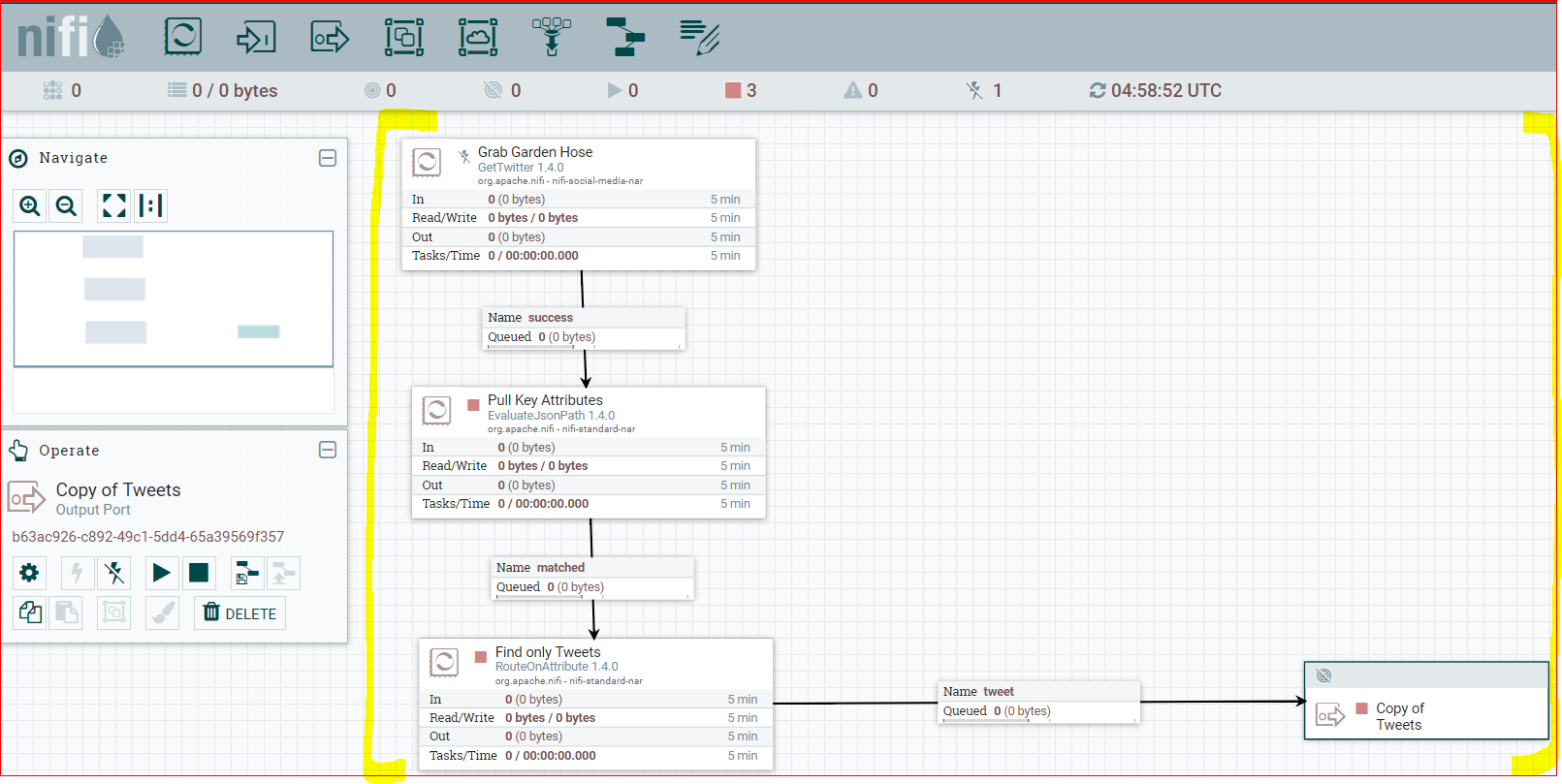
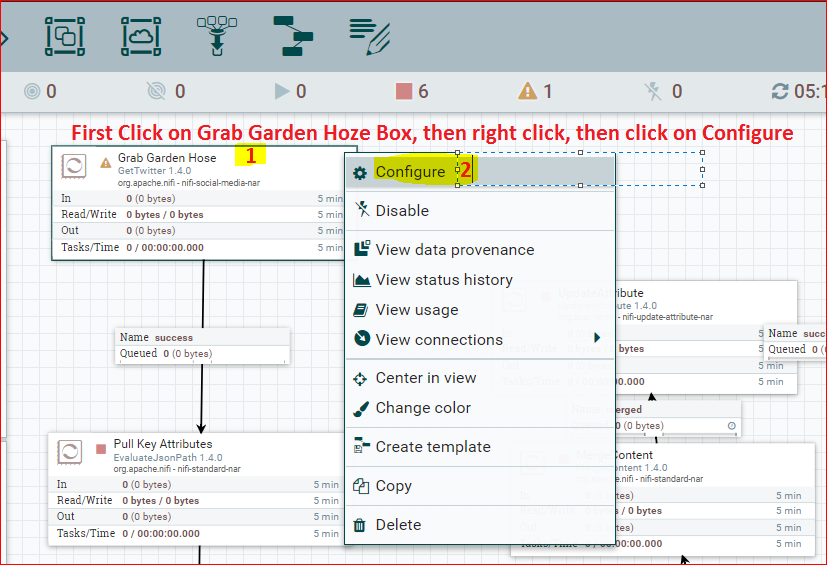
- Click on “Grab Garden Hoze” to select the box first, then right click to open context menu and click ‘Configure’.
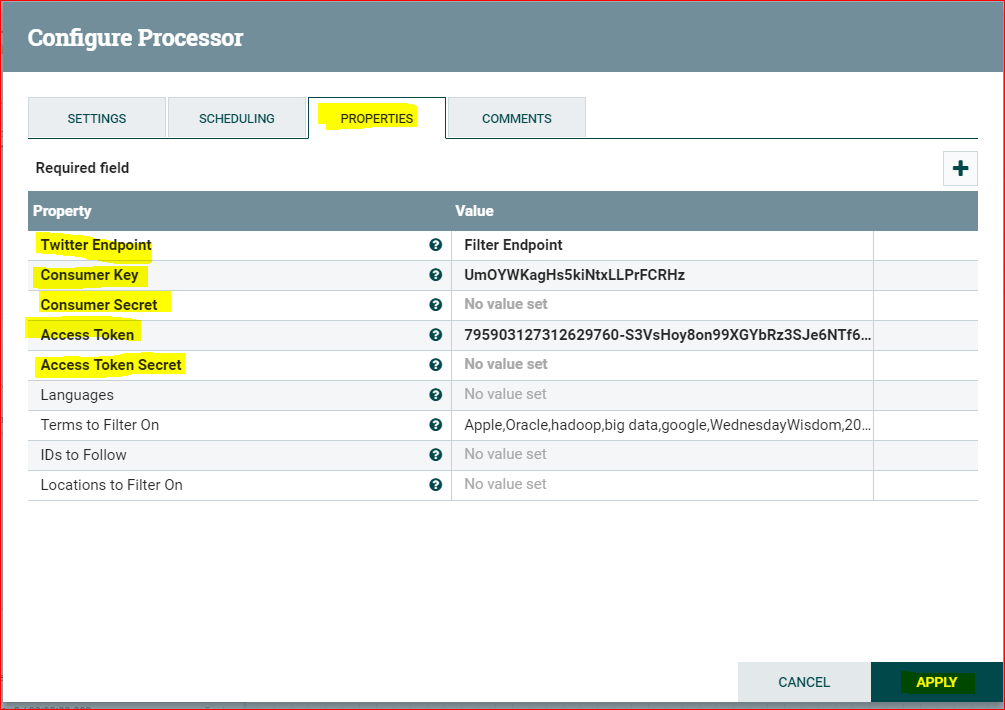
- In the ‘Configure Processor’ pop up that opens, enter the following
- Twitter Endpoint = Filter Endpoint
- Consumer Key, Consumer Secret, Access Token and Access Token secret from the twitter app you created.
- Now create a directory and give permissions in HDFS where we can save the tweets.
- hadoop fs -mkdir /user/maria_dev/nifitest
- hadoop fs -chmod 777 /user/maria_dev/nifitest
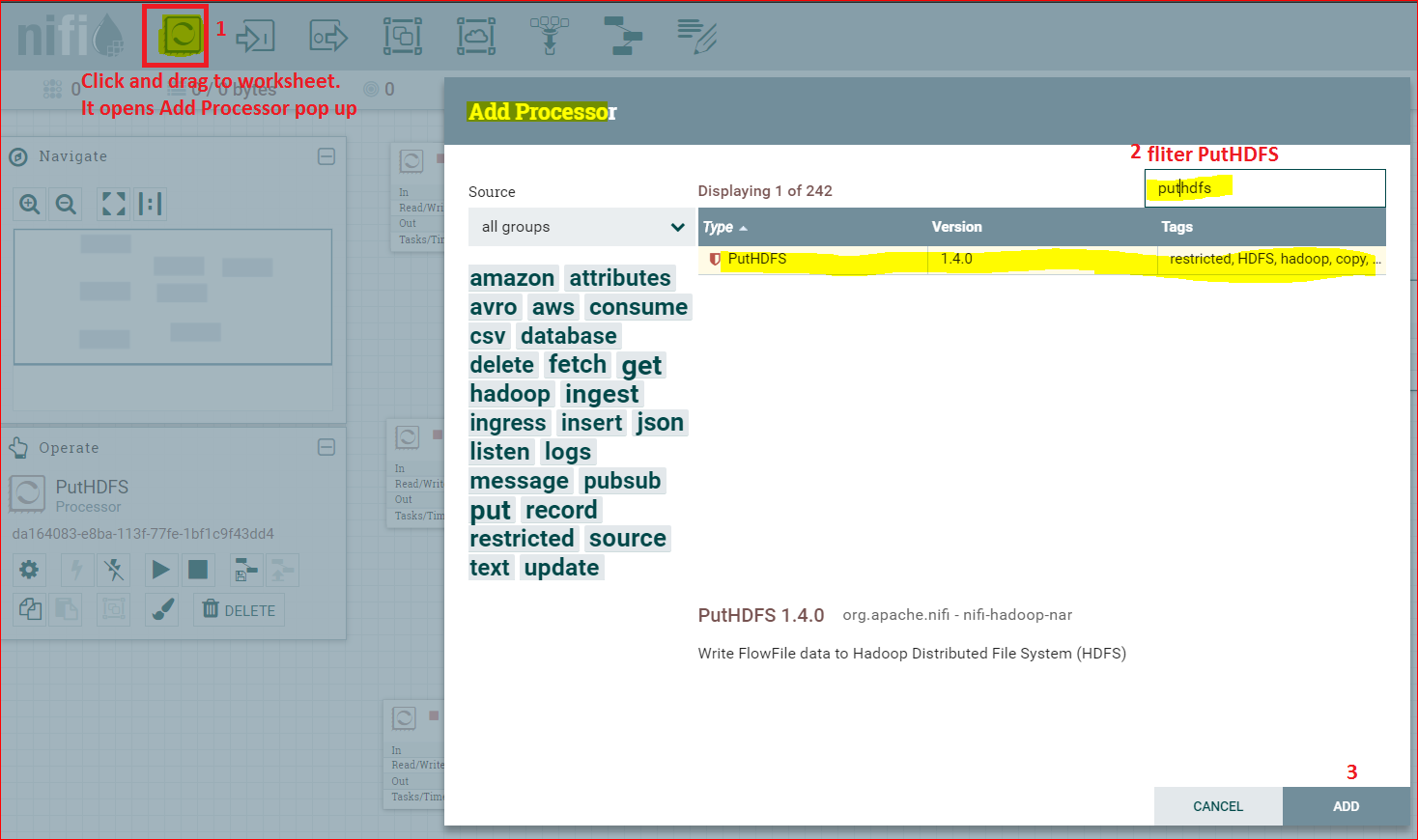
- Now come back to Nifi UI and click and drag the processor button as in the snapshot below – and filter HDFS Processor
- Configure the processor and integrate it with workflow to do this, click
“Find only Tweets” to “PutHDFS” by dragging relationship arrow. 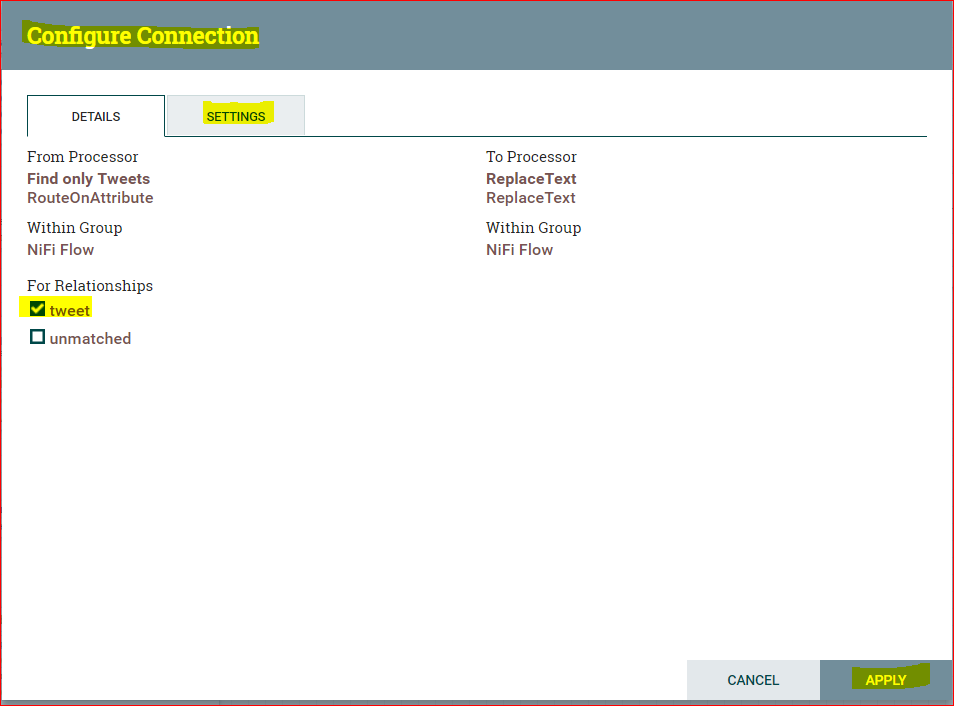
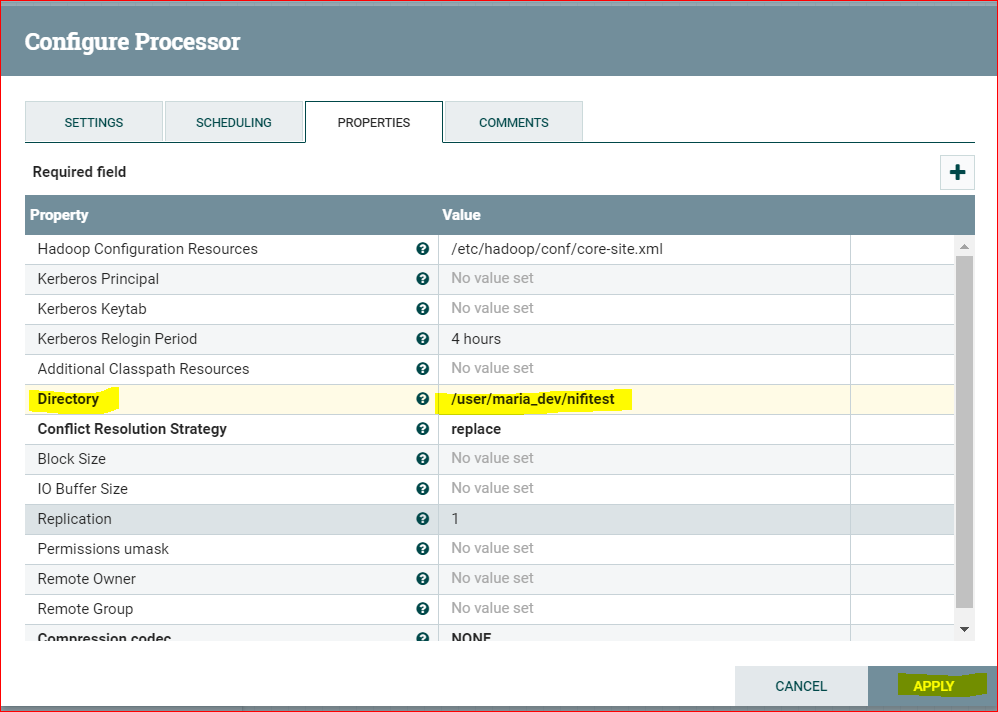
- Now Configure the PutHDFS Processor (right click and “Configure” and then set the directory to – /user/maria_dev/nifitest
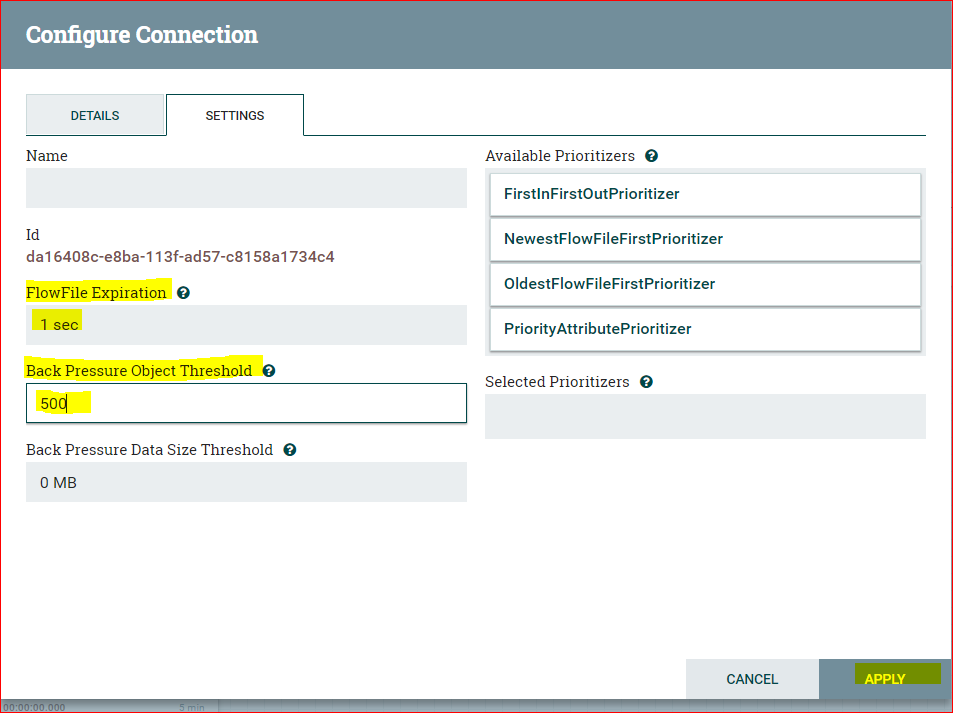
- Right click on “matched” queue and configure the following:
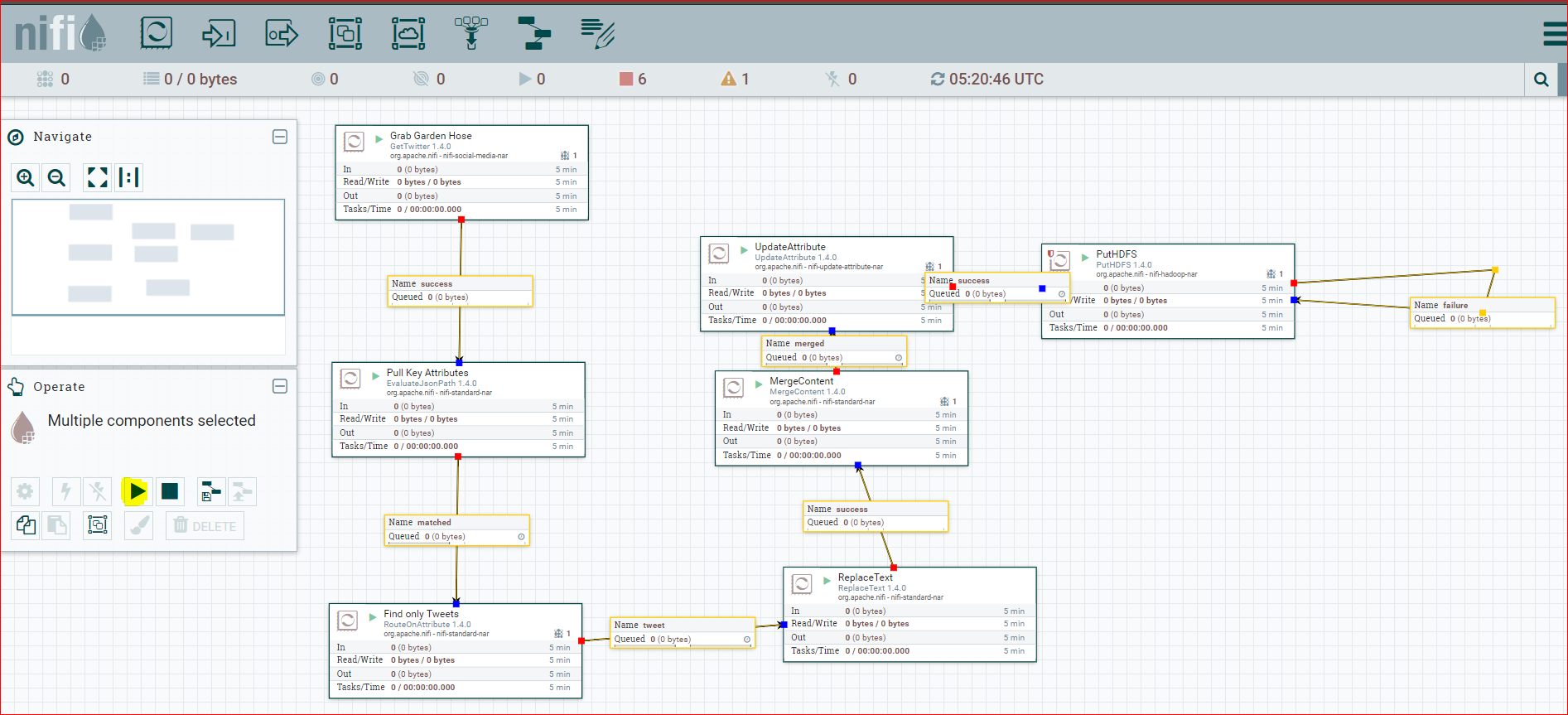
- Now select all the components (Ctrl + A) and press the process arrow button as shown below.
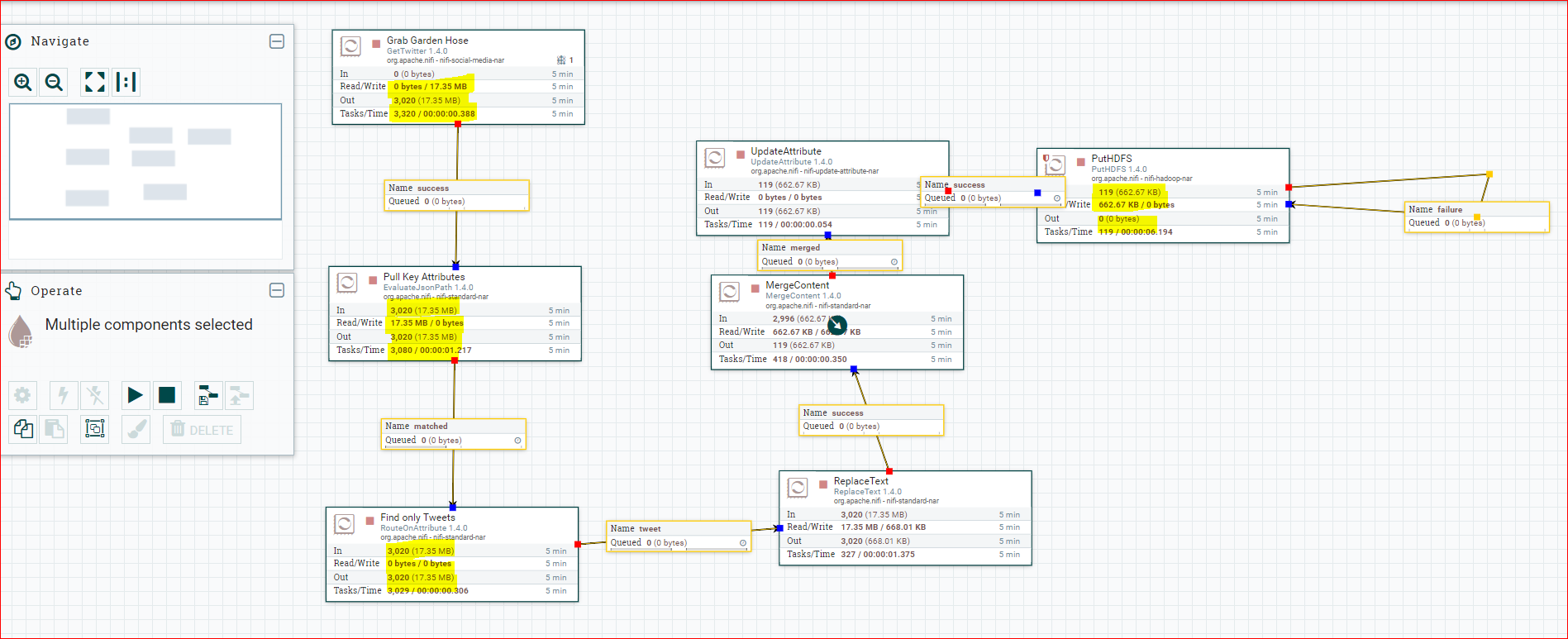
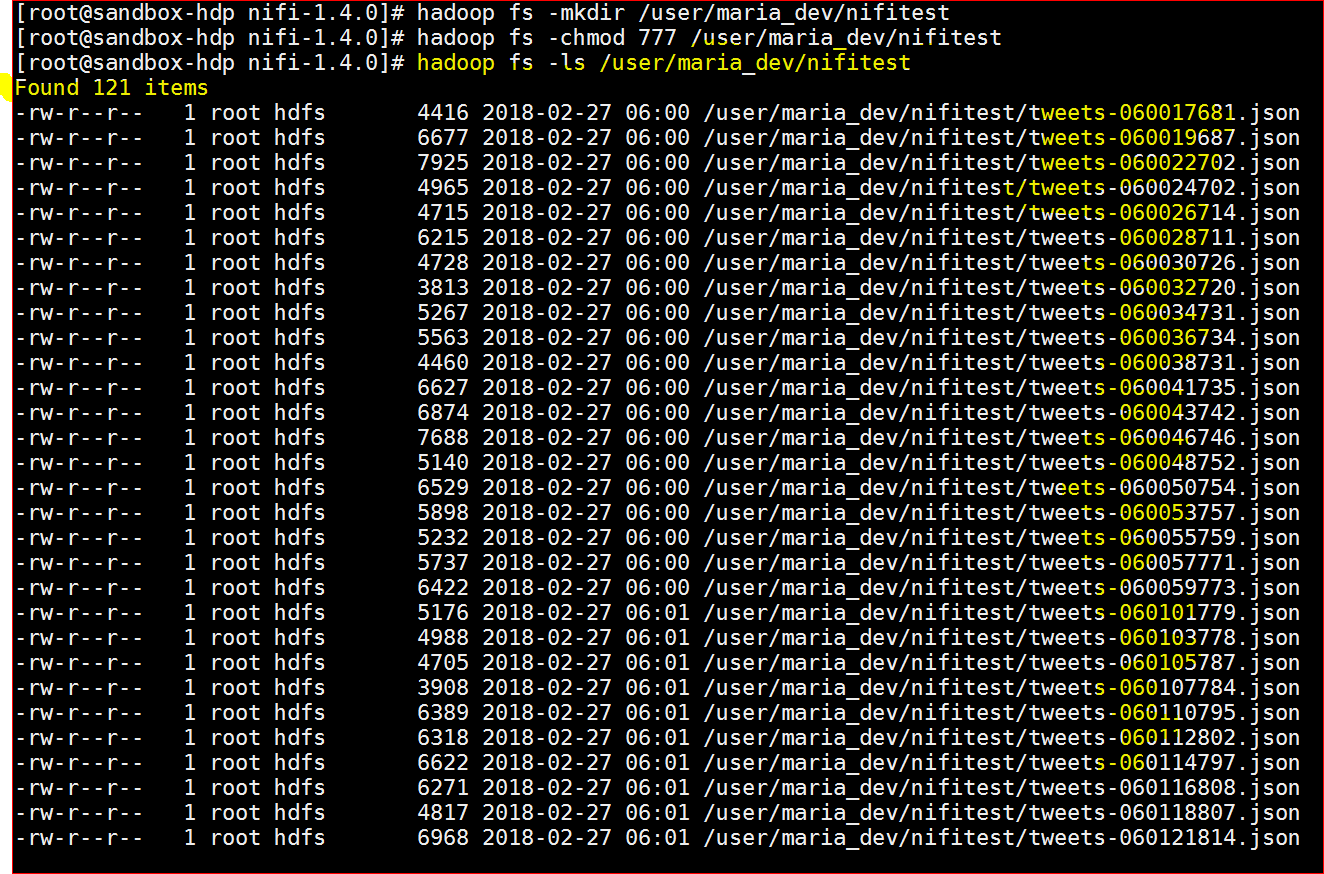
- Now lets verify if data was written in HDFS
- Check – hadoop fs -ls /user/maria_dev/nifitest
- Now that the data is pulled in HDFS, lets use any tool to visualize the data.
- Lets use Hive for now –
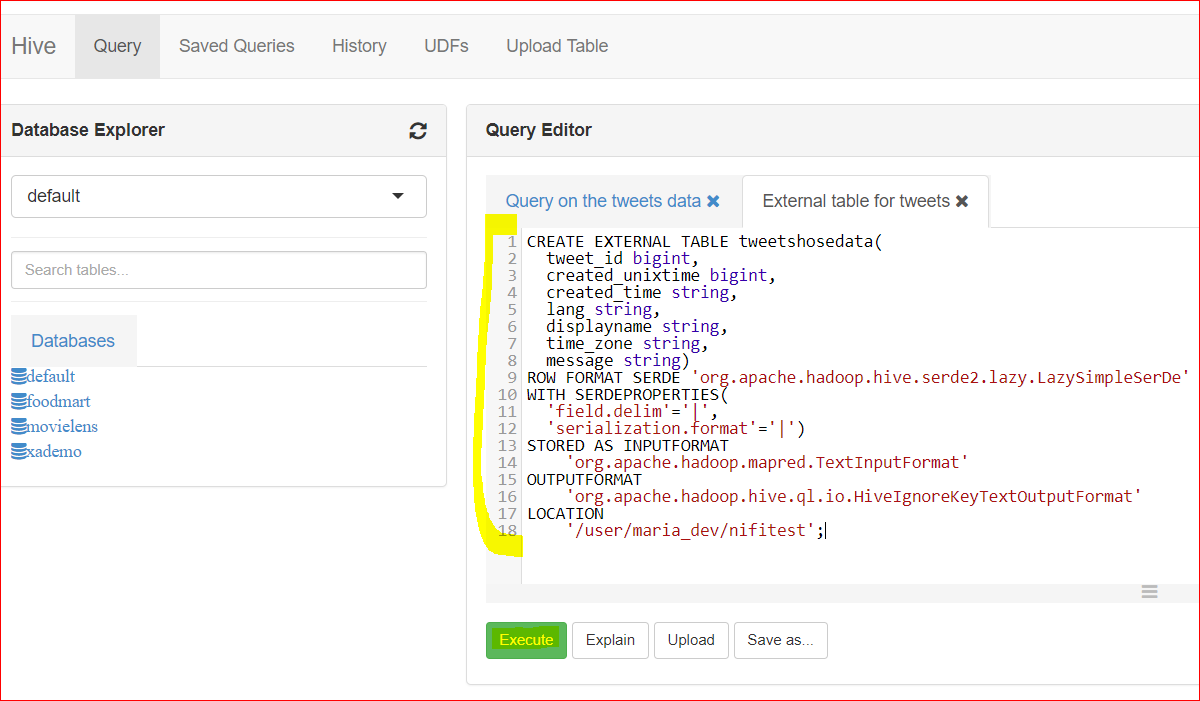
- Create an external table pointing to the tweets folder in HDFS:
-
CREATE EXTERNAL TABLE tweetshosedata( tweet_id bigint, created_unixtime bigint, created_time string, lang string, displayname string, time_zone string, message string) ROW FORMAT SERDE ‘org.apache.hadoop.hive.serde2.lazy.LazySimpleSerDe’ WITH SERDEPROPERTIES( ‘field.delim’=’|’, ‘serialization.format’=’|’) STORED AS INPUTFORMAT ‘org.apache.hadoop.mapred.TextInputFormat’ OUTPUTFORMAT ‘org.apache.hadoop.hive.ql.io.HiveIgnoreKeyTextOutputFormat’ LOCATION ‘/user/maria_dev/nifitest’;
- Now query to view the data
-
select displayname, count(*) as NumberOfTweets
from tweetshosedata
group by displayname
order by NumberOfTweets desc; 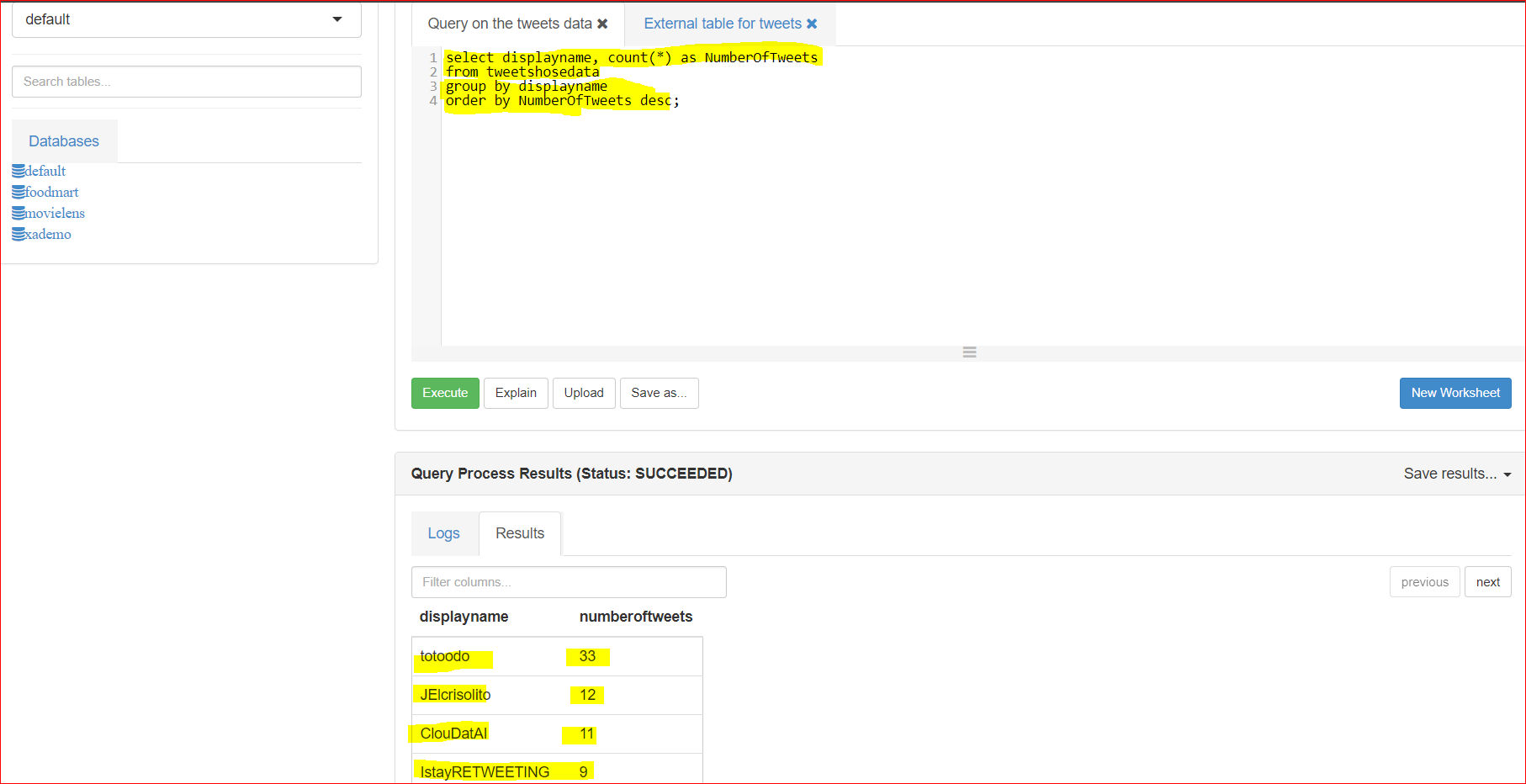
- So we streamed data from Twitter Hose and upload in HDFS and then created an external table in Hive to visualize the data using a Hive Query.