- As we know that “Hortonworks Sandbox” is a customized Hadoop VM, which you can install using any of the virtualization tools like VMWare or VirtualBox etc.
- You can also use Docker to install “Hortonworks Sandbox”.
- So why Docker instead of VMWare or VirtualBox:
-
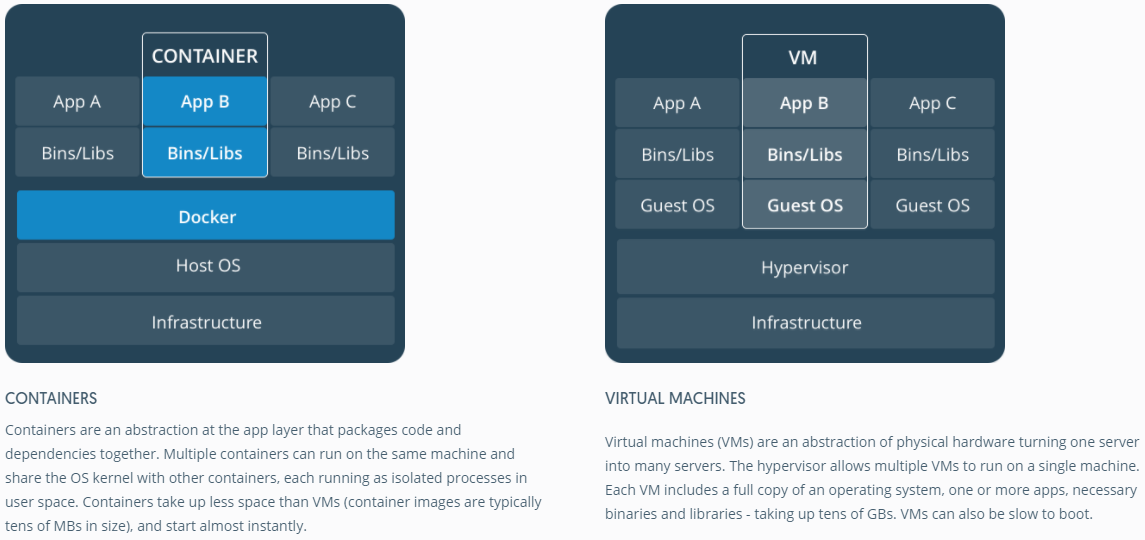
As you can see VMs use hypervisor to create multiples virtual server inside one physical server and each such virtual server is a full OS with its apps. On the other hand “dockers” create something called “containers” which only consists of the applications and the required binaries and dependencies. Thus it is much faster than VMs. Source: https://www.docker.com/what-container#/package_software
- Below are the steps to install:
- First install the Docker :
- Dockers comes in versions for all major OS, so download the one you need and install it.
- We will follow the documentation for Docker For Windows.
- Please ensure that your computer has a multi-core CPU ( use al teast 2 cores for the Sandbox and at least 10-12 GB of free RAM
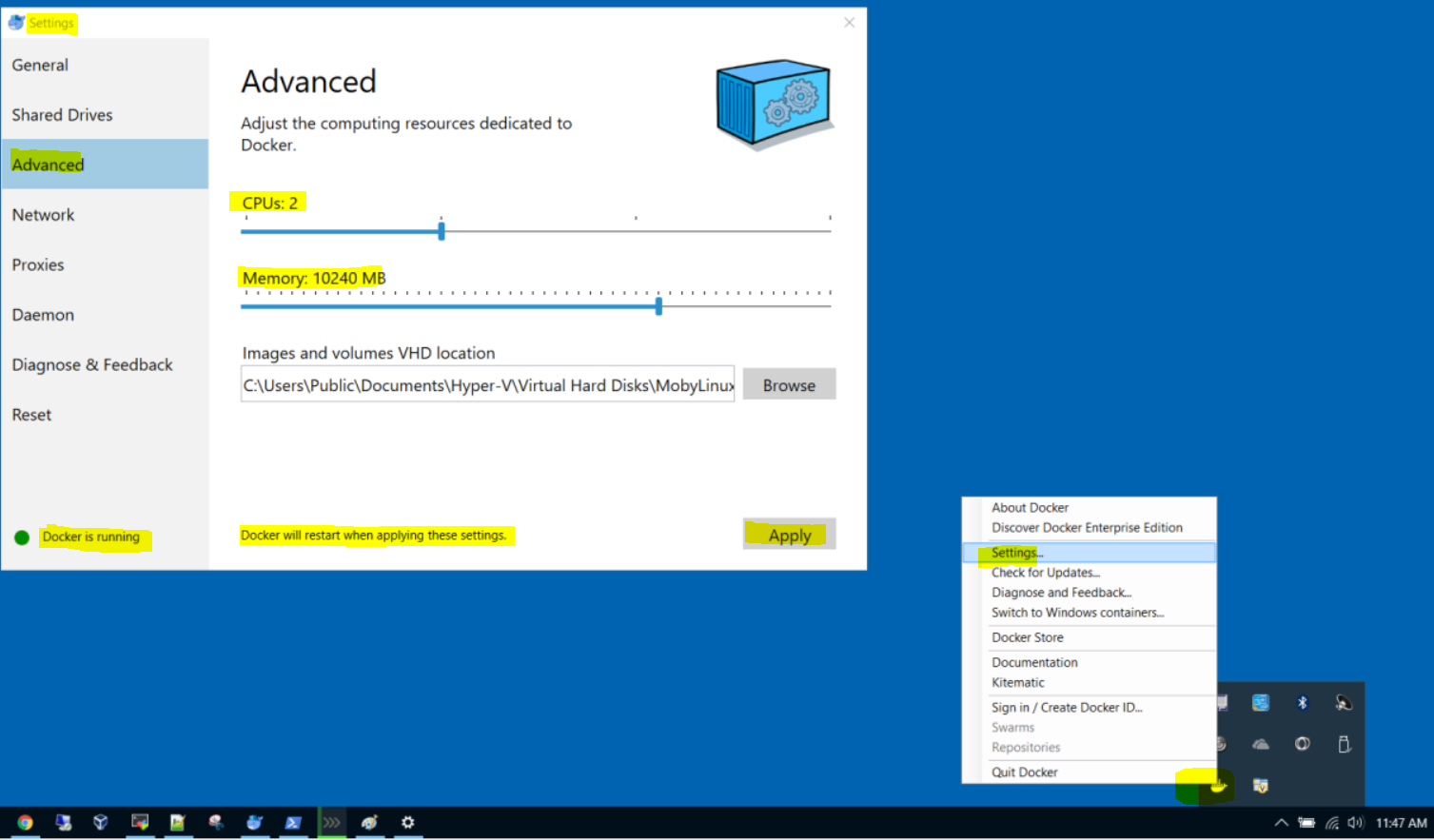
- From the “System tray”, right click on the “docker” icon and then select “settings”. Select the “advanced” tab and increase the CPU cores to 2 and memory somewhere between 8192(8 GB) to 10240(10 GB).
- Then Install HortonWorks Sandbox:
- Go to this location – https://hortonworks.com/downloads/#sandbox and download “Sandbox for Docker” or click this link to download to your machine where docker is running – https://downloads-hortonworks.akamaized.net/sandbox-hdp-2.6.3/HDP_2.6.3_docker_10_11_2017.tar
- Now open the PowerShell Window : and run the following commands
- Load the downloaded docker image – docker load -i sandbox-hdp-2.6.3/HDP_2.6.3_docker_10_11_2017.tar
- Verify, if image is loaded – docker images
- Download this PowerShell script from Hortonworks to setup the sandbox – https://raw.githubusercontent.com/hortonworks/data-tutorials/master/tutorials/hdp/sandbox-deployment-and-install-guide/assets/start_sandbox-hdp.ps1
- Now tun this script from the location your downloaded( lets assume you downloaded it to same location where you downloaded the sandbox image file – HDP_2.6.3_docker_10_11_2017.tar
- Powershell -ExecutionPolicy ByPass -File start_sandbox-hdp.ps1
- Wait till you get the message that the server is now running and listening.
-
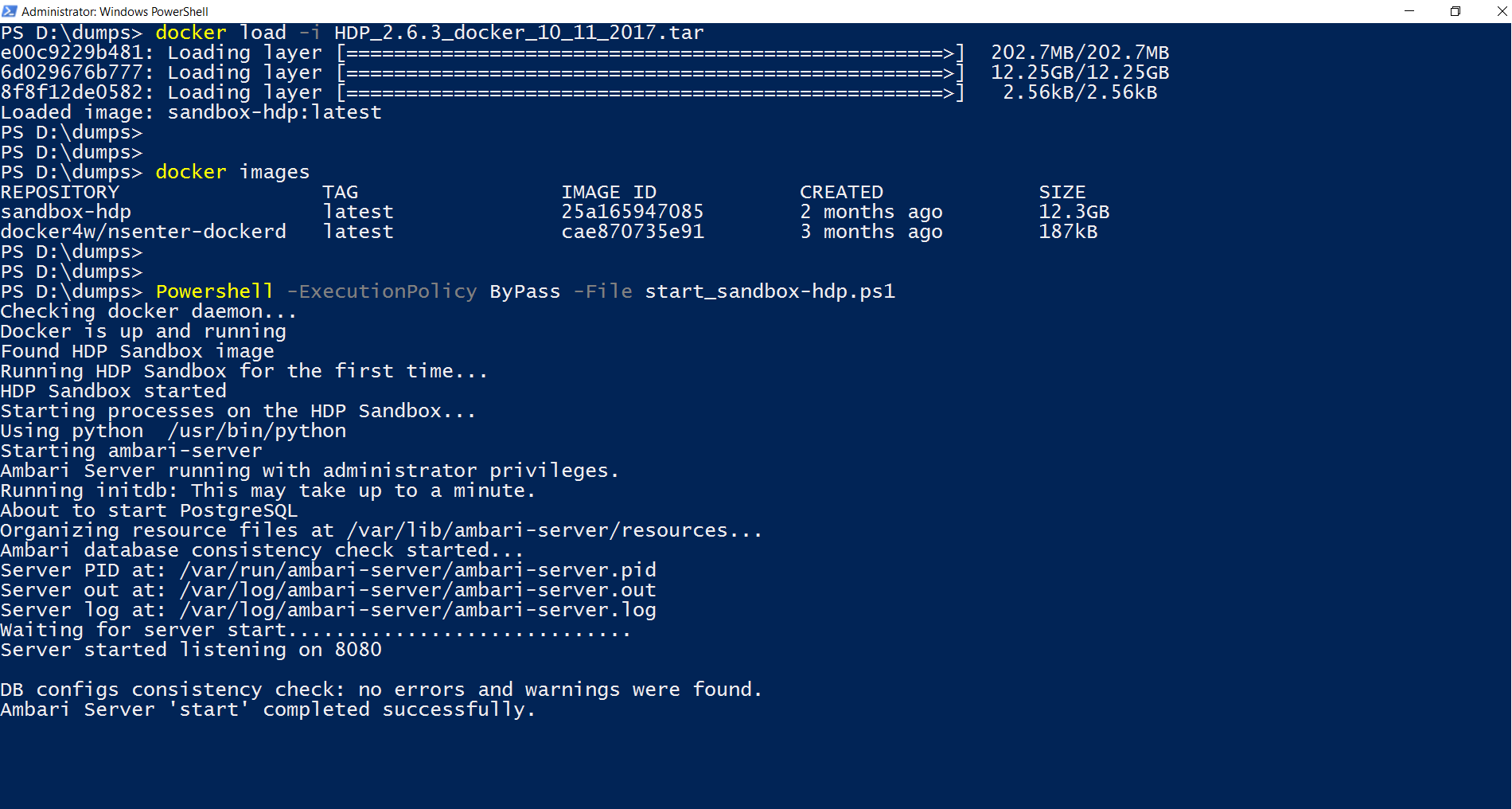
So the sandbox is running on port 8080. - Now lets login to the Sandbox using – http://127.0.0.1:8080 ( user maria_dev as credentials to login)
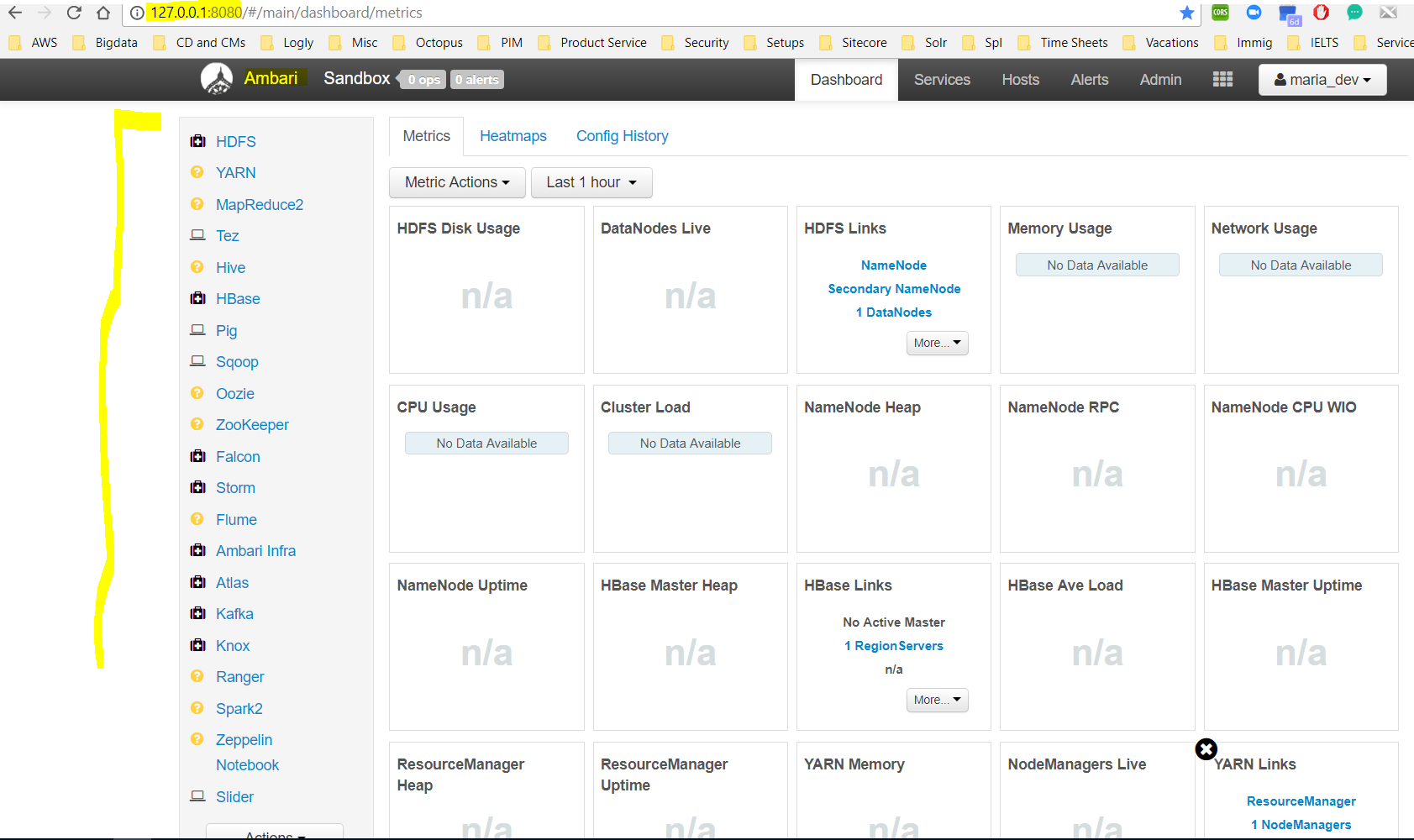
- But there is a problem –
- although we have logged in but none of the services are running.
- To fix that lets do these 2 things as in the paragraphs below.
- Now we will log-on to the sandbox console via putty or terminal or Mobaxterm using IP as 127.0.0.1 ( default is 127.0.0.1, but it can vary for you as you setup the host settings).
- SSH using 127.0.0.1 with port 2222 using root as user and hadoop as password. You will be prompted to change the password ‘hadoop’ as soon as you login.
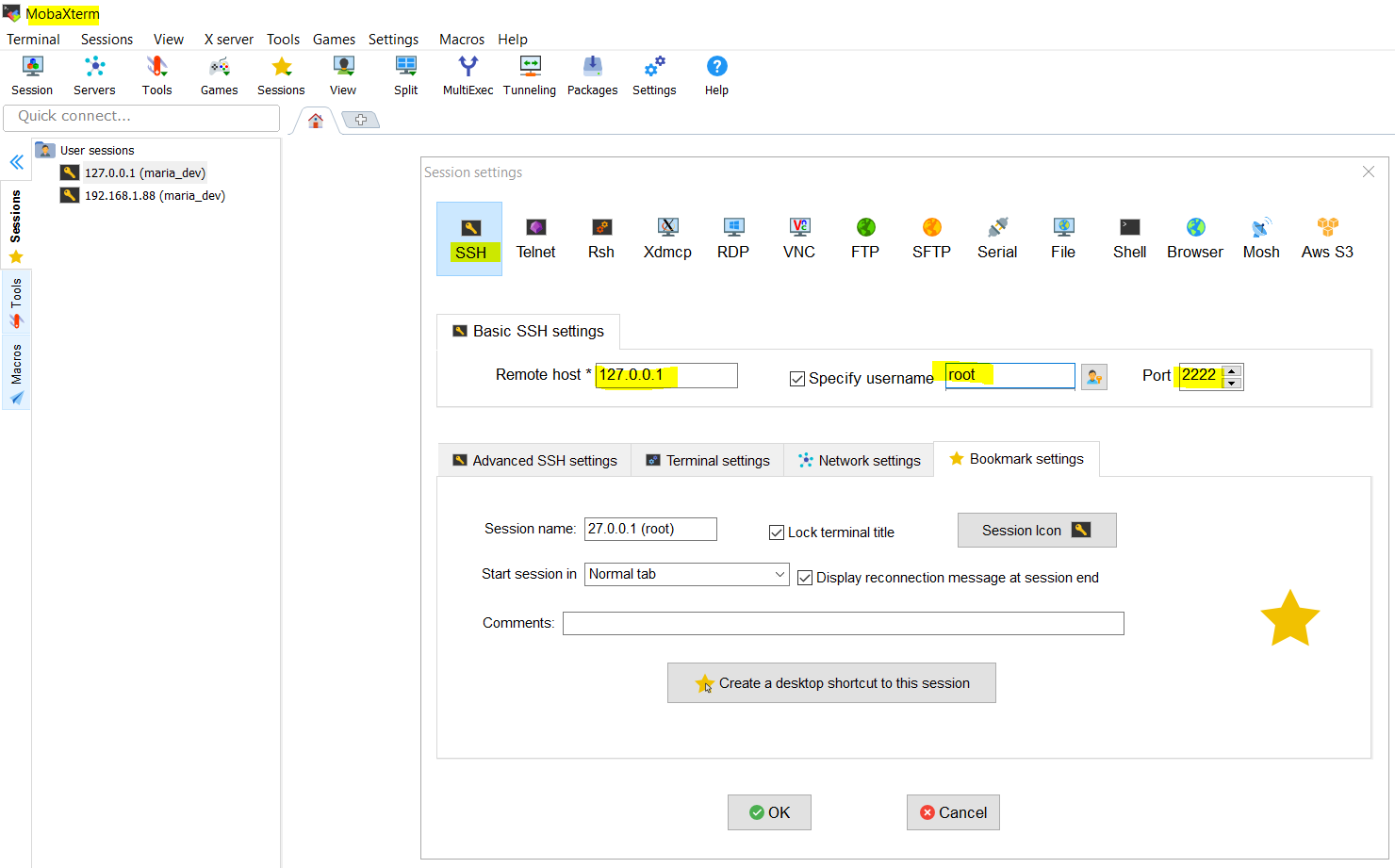
- Now as you have logged in, please execute these 2 commands
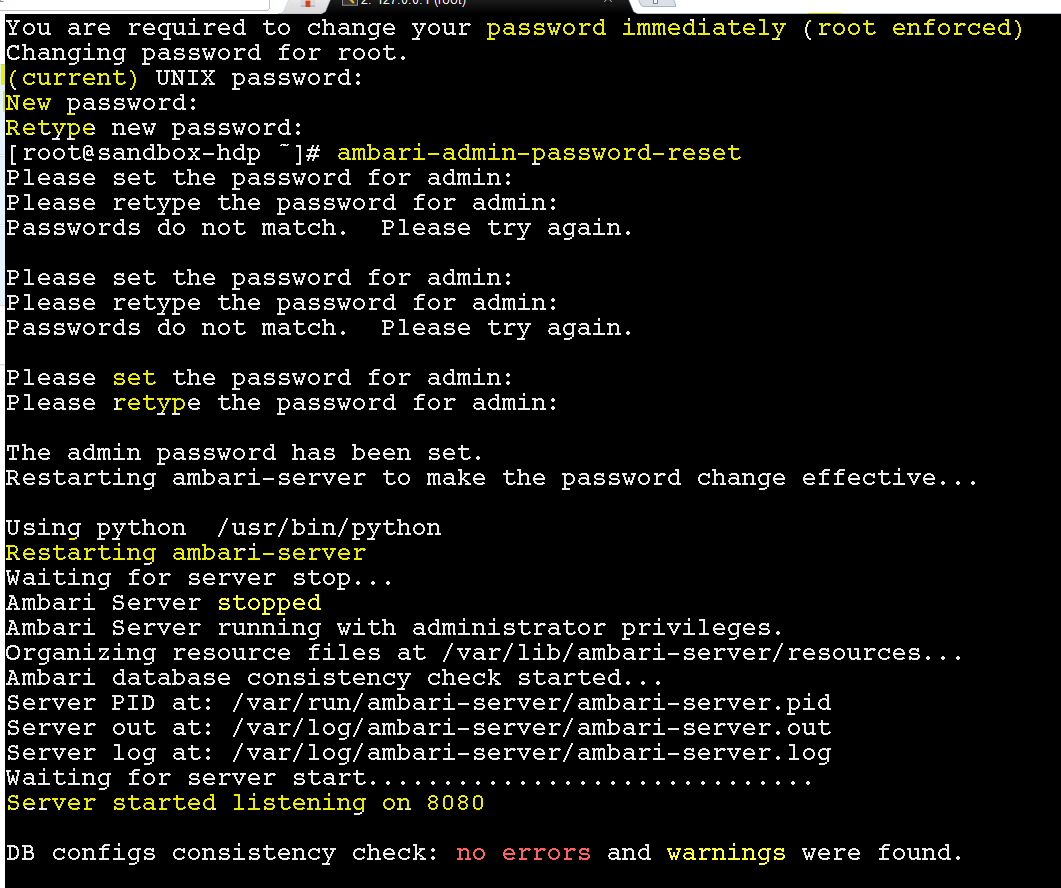
- First reset the ambari admin password – ambari-admin-password-reset
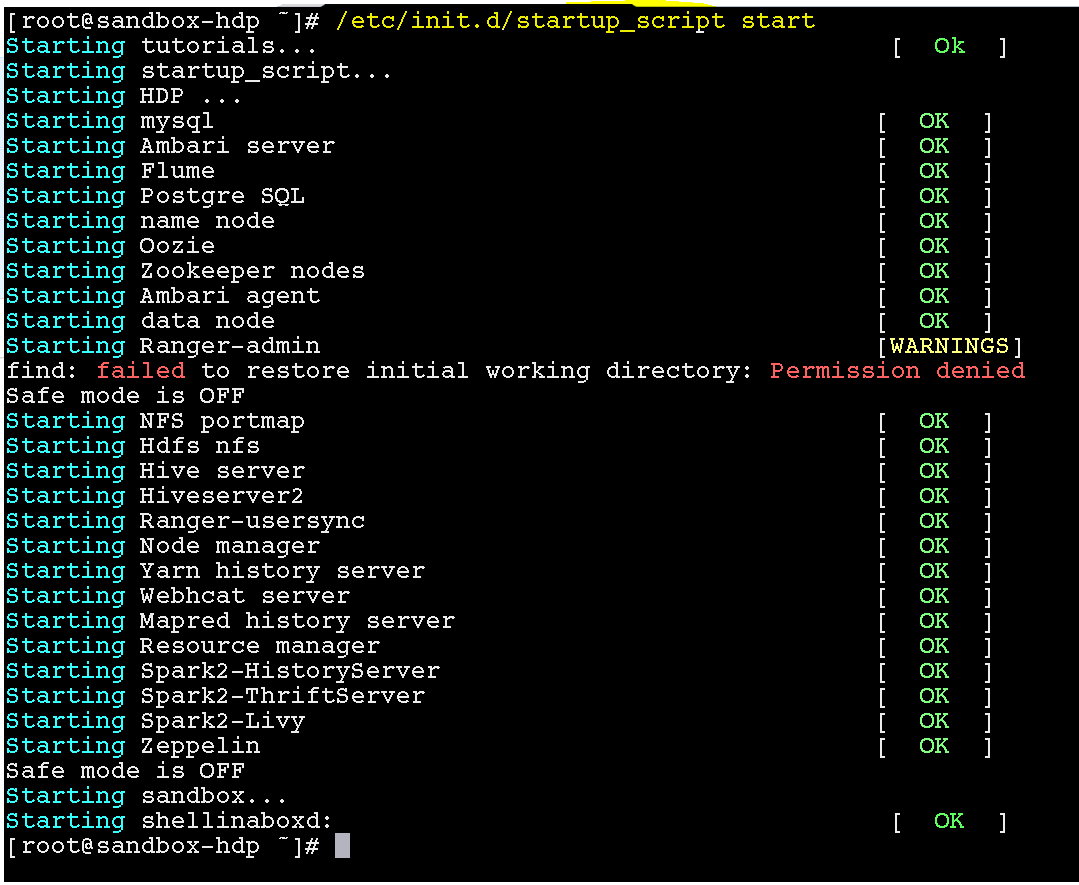
- Second, restart all the Ambari sandbox services – /etc/init.d/startup_script start
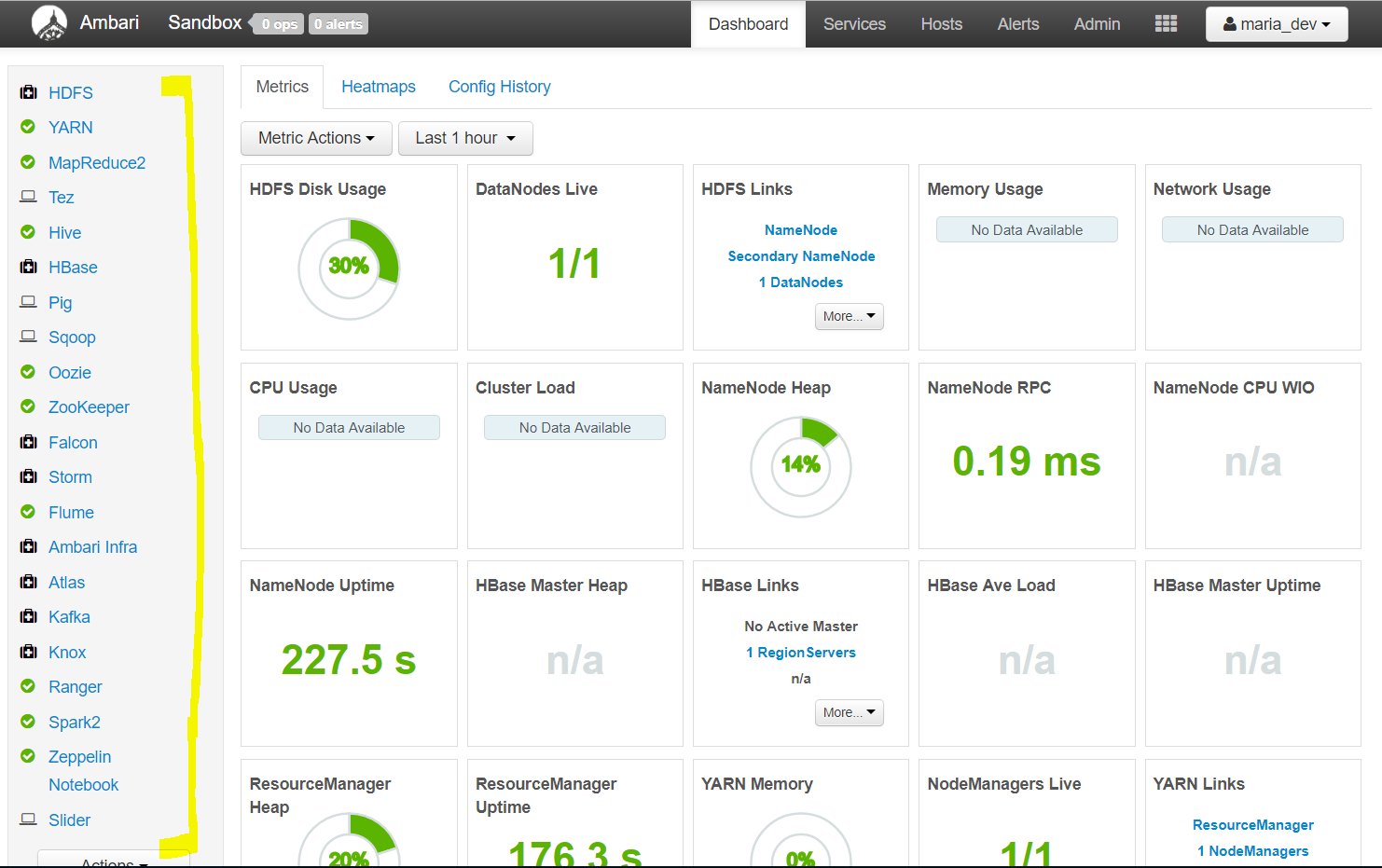
- Now, refresh the Ambari dashboard and you will see that all the services are running.
- First install the Docker :
- To uninstall Sandbox :
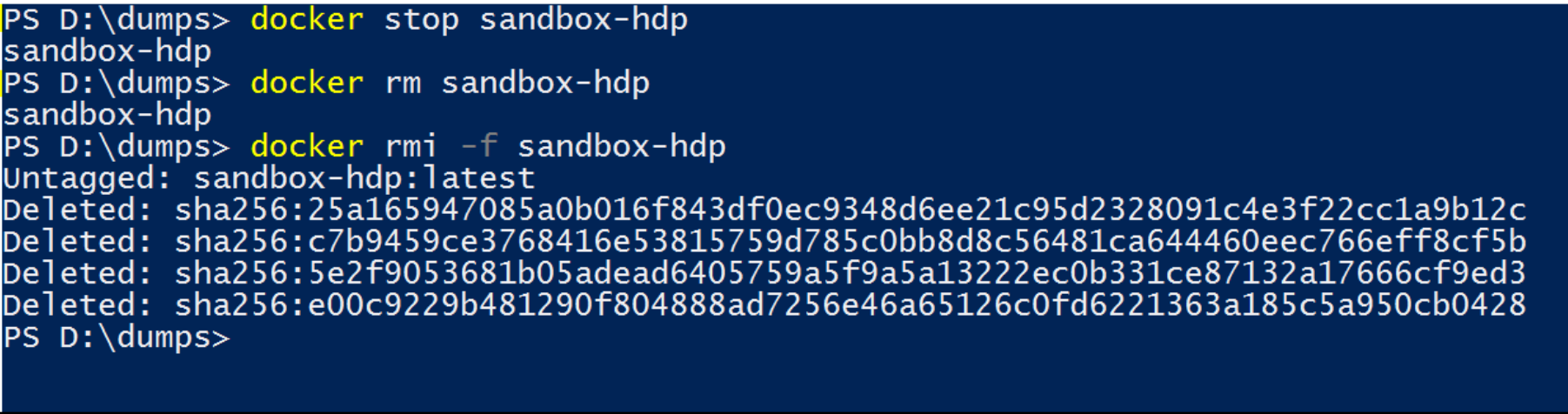
- To stop the sandbox – docker stop sandbox-hdp
- To remove he sandbox container – docker rm sandbox-hdp
- To remove the sandbox image – docker rmi -f sandbox-hdp