


- Requirement:
- Lets imagine that as a DevOps, you have been asked to create a container to run redis, and try different docker commands to run redis in foreground, background, with specific port binding, with dynamic port binding, persisting data and logs from container to a volume on host
- Strategy:
- search the name of image on docker hub
- run the redis container in background as its a database and will take time to setup
- run redis in background
- run redis with specific port
- run redis with dynamic port
- run redis with volume persistance
- Solution:
- Login to your Host machine(in my case a CentOS 7 machine)
- Make a directory “TicTackToe” and go to the directory – mkdir myredis && cd myredis
- How to
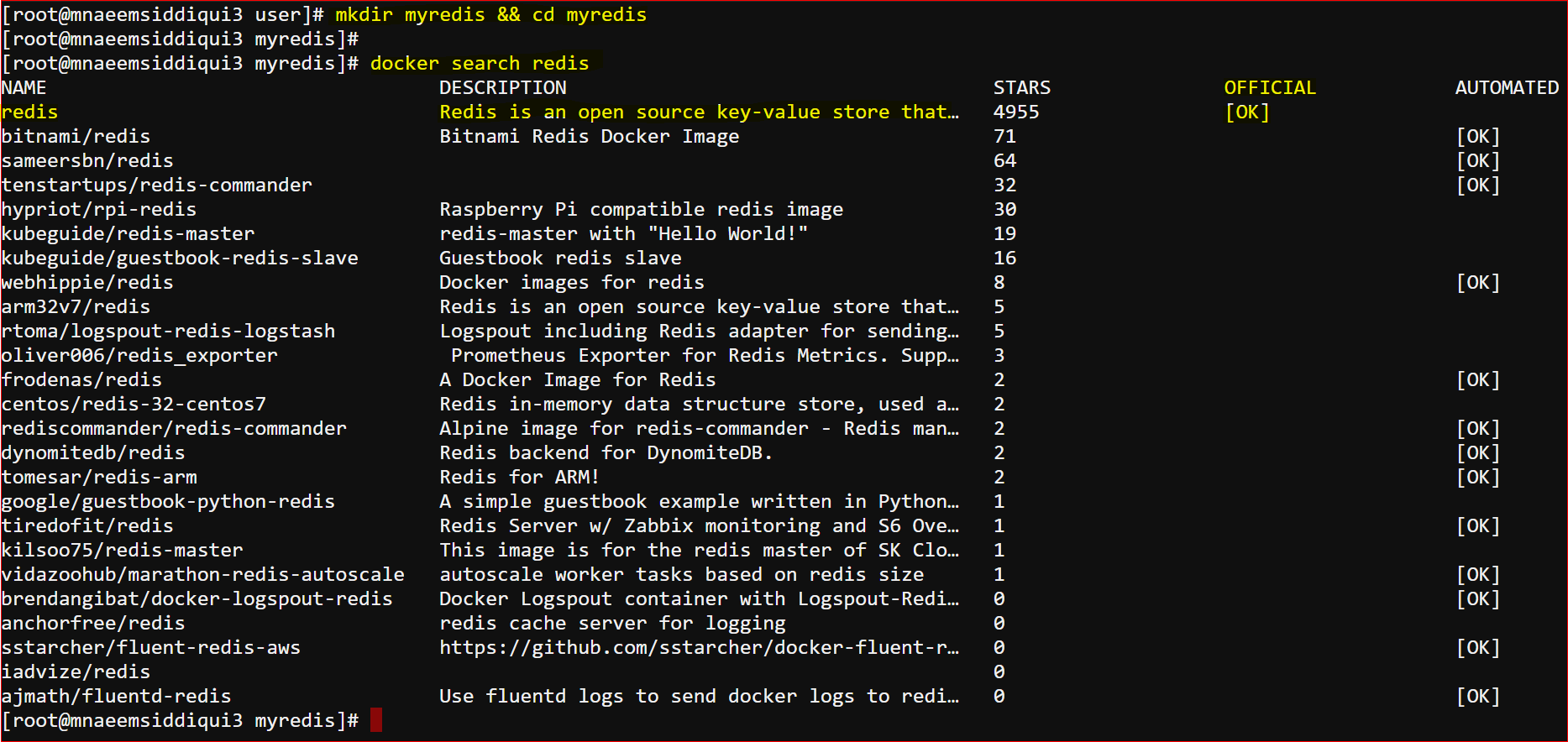
- search for an image – docker search <image-name>
- e.g. docker search redis
- run an image
- in interactive mode – docker run -it <image-name>
- docker run -it redis
- switch “-it” is for interactive mode
- in background mode – docker run -d <image-name>
- docker run -d redis
- switch “-d” is for background mode
- in interactive mode – docker run -it <image-name>
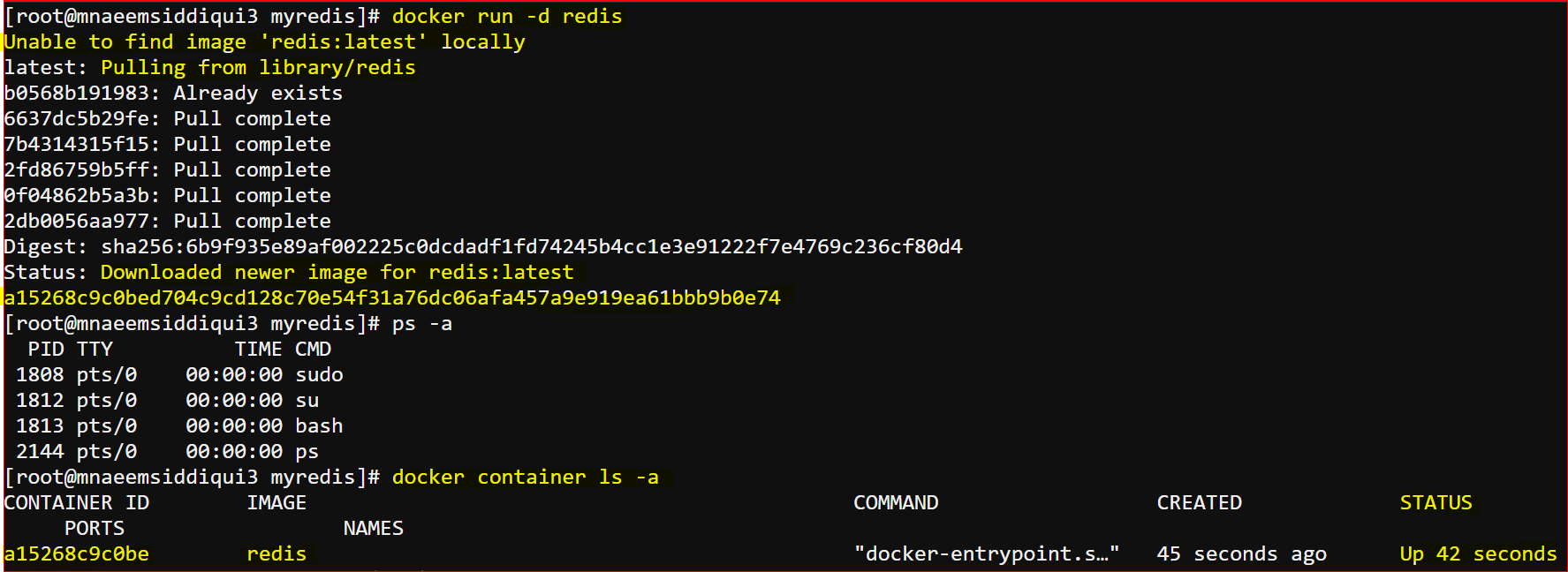
- check if container is running – docker container ls or docker ps -a
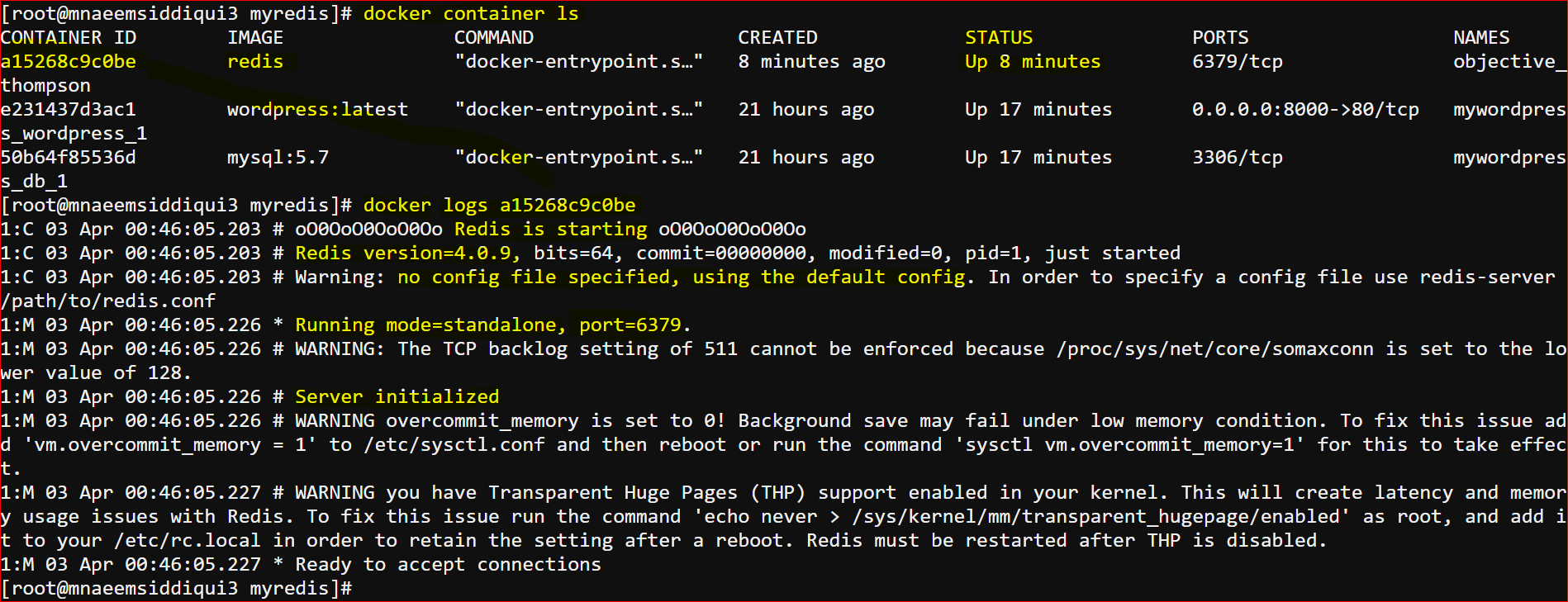
- check logs of a container – docker logs <container-id>
- docker logs a15268c9c0be # show full log
- docker logs –tail 10 a15268c9c0be # show last 10 lines
- docker logs -f a15268c9c0be # show continuous logs as it generates
- To stop a container – docker container stop a15268c9c0be
- To start a container – docker container start a15268c9c0be
- To kill a container – docker container kill a15268c9c0be
- to execute redis with a specific port with host container port forwarding( not a good practice because we are hard setting the port)
- docker run -d –name redisHostStaticPort -p 6379:6379 redis:latest
- to execute redis with a dynamic host port with host container port forwarding( not a good practice because we are hard setting the port)
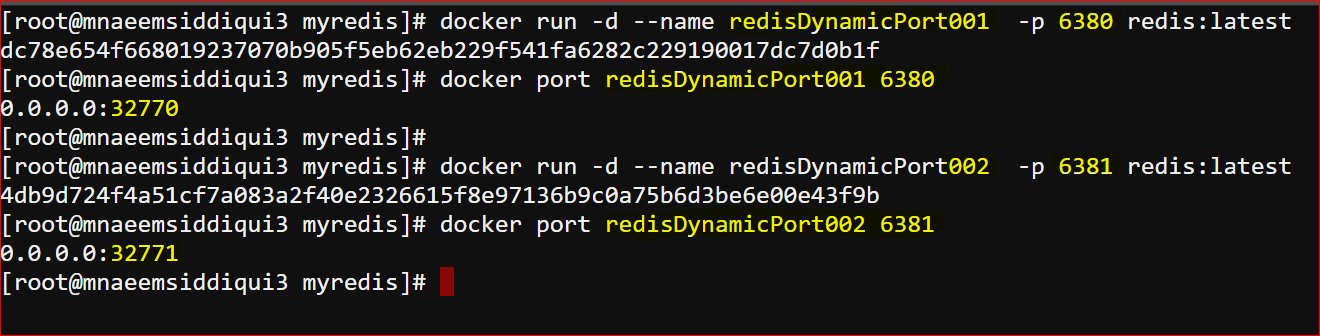
- docker run -d –name redisHostDynamicPort001 -p 6380 redis:latest
- But now you don’t know which host port was assigned
- so use command – docker port redisHostDynamicPort001 6380
- the host port assigned was 32770
- Now you can run another instance too
- docker run -d –name redisHostDynamicPort002 -p 6381 redis:latest
- docker port redisHostDynamicPort002 6381
- now another port was assigned 32551
- Now you can see that you are running two instances of redis. See snapshot below.
- Now to persist the data each time the redis restart we have to define the volumes
- volumes help you persist the dats from container to the host
- we can use switch -v <host-dir>:<container-dir>
- e.g. docker run -d –name redisHostDynamicPort003 -p 6389 -v “$PWD/data”:/data redis:latest
- $PWD is to get present working directory
- $PWD/data means the data folder in current directory of host
- /data means the /data folder of redis container where logs will be stored
- -v “$PWD/data”:/data means defining an attaching a volume forwarding from container folder /data to the host folder data
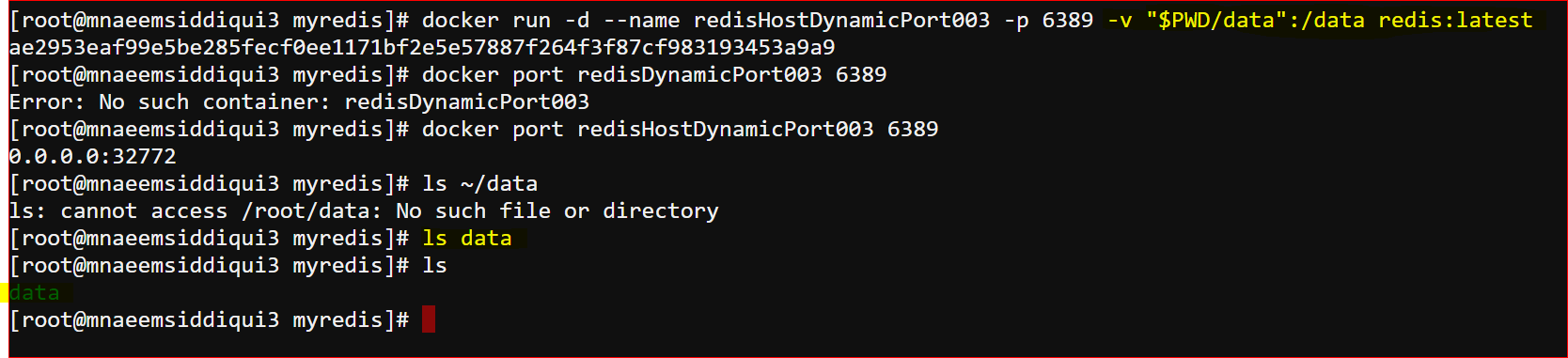
- check or inspect a container
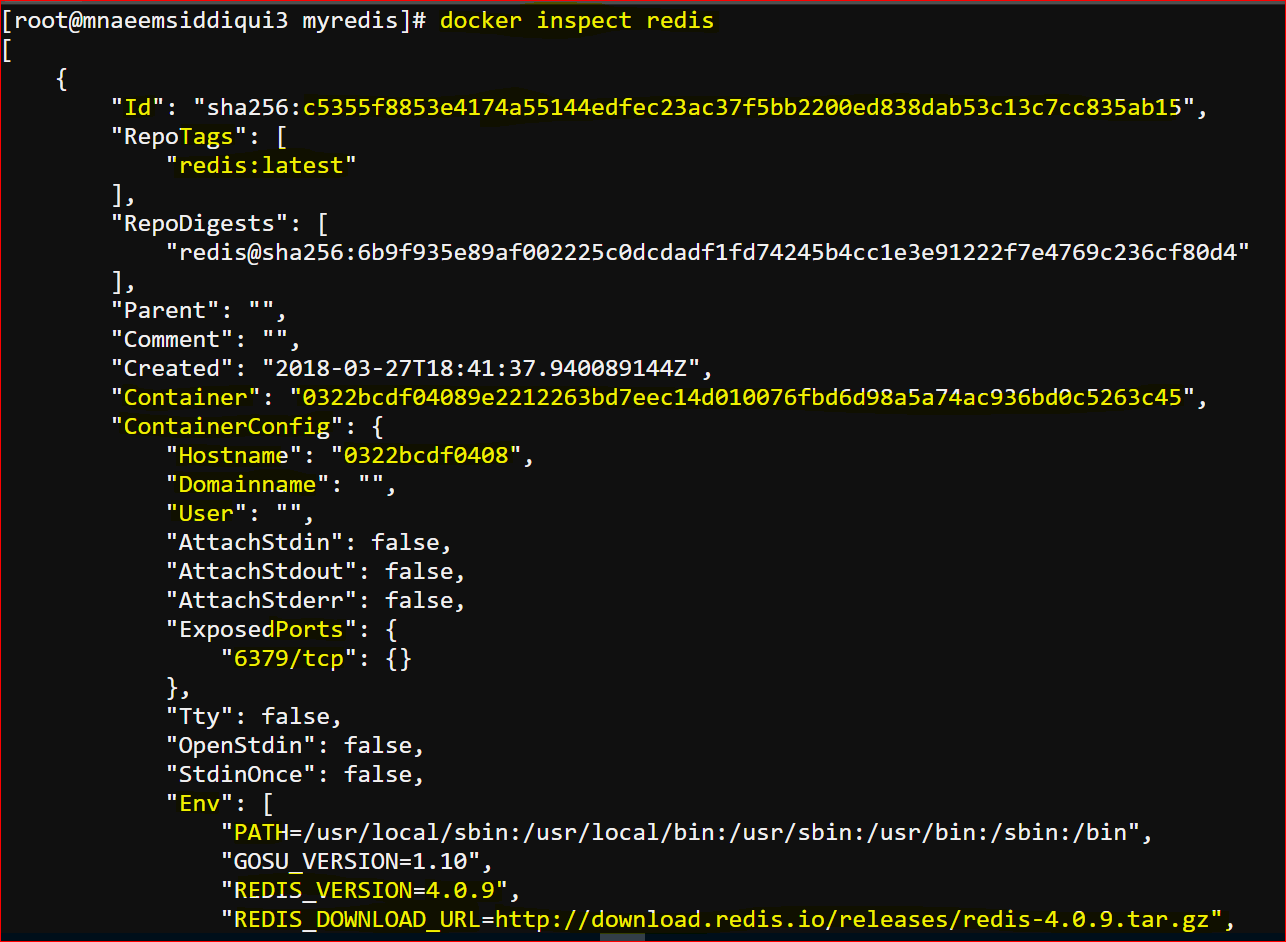
- it provides the meta data about the container
- docker inspect <containerid-or-name>
- e.g. docker inspect redis
- docker inspect –format “{{RepoTags}}” redis # searches lines in the inspect JSON
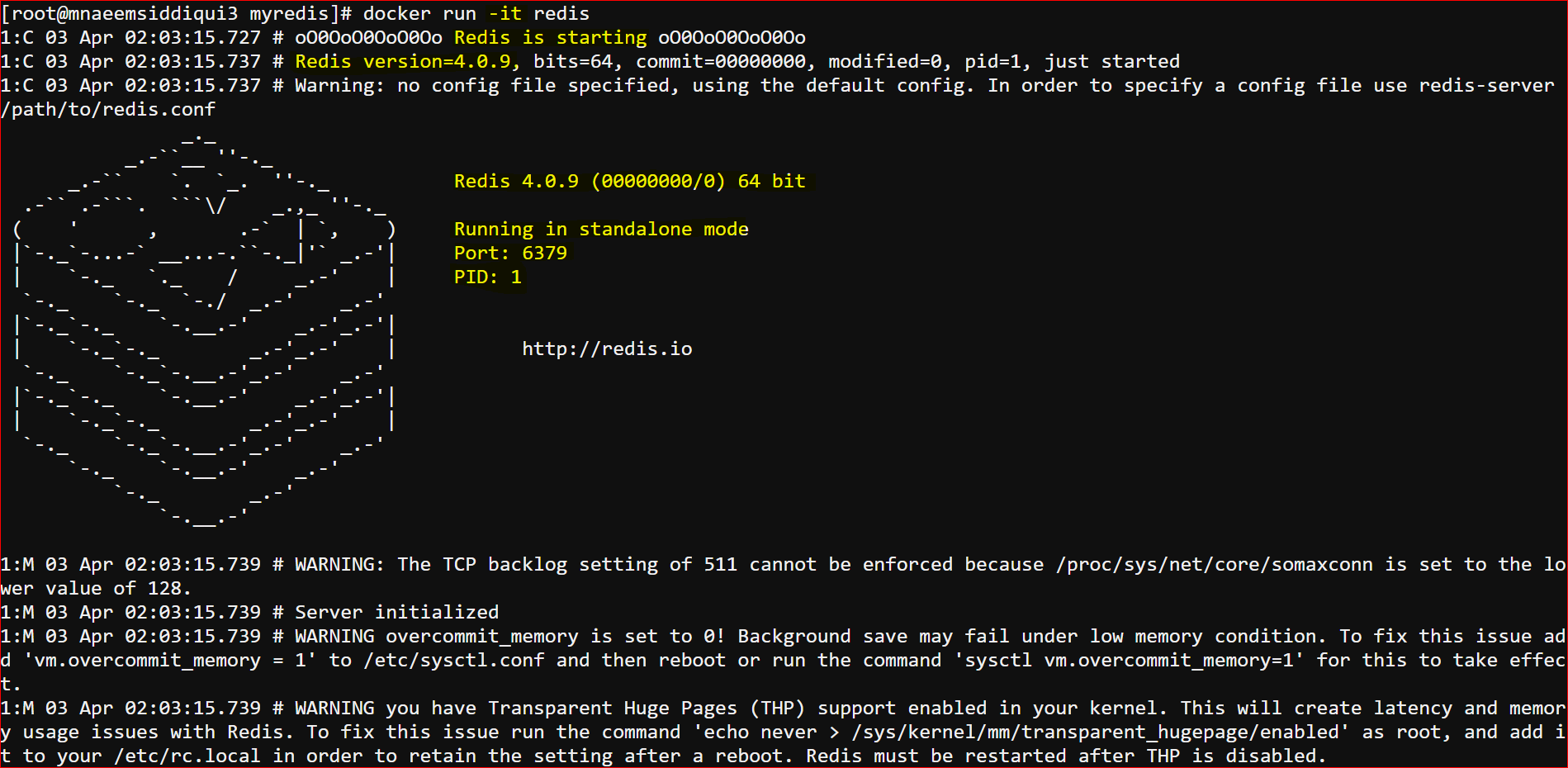
- Running redis in foreground:
- docker run -it redis
- the switch “-it” runs a container in foreground or interactive mode

Dockers
Dockers 101 – Series 4 of N – Using Docker-Setting Up a Redis Container
Requirement: Lets imagine that as a DevOps, you have been asked to create a container to run redis, and try different docker commands to run redis in foreground, […]